Embroidery guide
How to Digitize Embroidery From a Logo (Step-by-Step, 2026)
How to digitize embroidery files from a logo or image: prep the artwork, pick size and fabric, choose stitch types, set underlay and test-sew.
Quick answer: To digitize embroidery means turning artwork into stitch instructions your machine can sew.
- Start with clean, flat-color artwork (SVG or a large PNG).
- Decide the finished size and the fabric first; small text needs at least 5–7 mm letter height.
- Assign stitch types (running, satin, fill), add underlay and pull compensation, and set a sensible sewing order.
- Save in your machine's format (PES, DST, JEF, EXP or VP3) and test-sew on scrap fabric with the right stabilizer.
A logo on screen is made of shapes and colors. An embroidery machine doesn't understand shapes. It needs a list of needle positions, thread colors, trims and stops. Digitizing is the job of writing that list, and doing it well is what separates a crisp left-chest logo from a puckered, gappy one.
This guide shows how to digitize embroidery designs from a logo or image, step by step. It covers the decisions a digitizer makes at each stage and how to do the whole job with StitchFile in a few minutes. The same principles apply whether you're making your first embroidery file or your hundredth.
What does it mean to digitize embroidery?
Digitizing is converting artwork into a stitch file: a machine embroidery file such as PES or DST that records every stitch, in order. A picture file (PNG, JPG, SVG) can't be sewn directly, and simply renaming it won't work. Someone (or something) has to decide:
- Which stitch type fills each shape: running, satin or fill.
- How dense the stitches are, and in which direction they run.
- What underlay goes down first to hold the fabric.
- How much to compensate for the fabric pulling in as it's stitched.
- What order the shapes and colors sew in, and where the machine trims.
Those decisions depend on the size of the design and the fabric it goes on. That's why a logo digitized for a 55 mm cap front shouldn't simply be scaled up to a 250 mm jacket back. The stitch structure needs to be rebuilt for the new size.
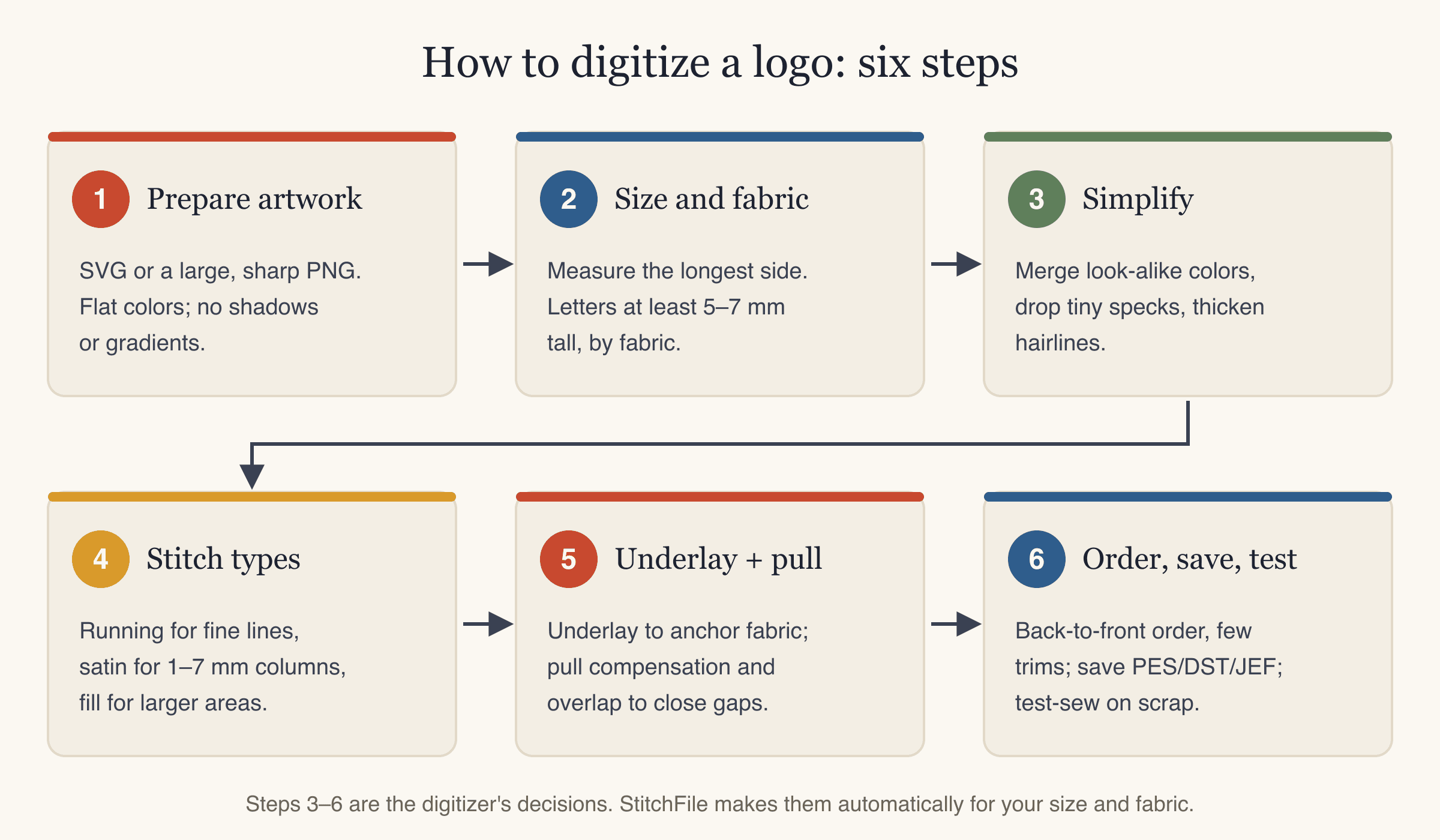
How to digitize a logo for embroidery, step by step
Step 1: Prepare the artwork
The cleaner the input, the cleaner the stitch-out. Embroidery is a flat-color medium: each thread is one solid color.
- Use the original logo file. An SVG exported from your design program is ideal. A large, sharp PNG is the next best. Avoid screenshots and small web images; their soft edges become wobbly stitch outlines.
- Remove what thread can't do. Drop shadows, gradients, glows, 3D bevels and mock-up backgrounds don't translate. Flatten them to solid colors.
- Convert text to outlines if you work in SVG, so letter shapes travel with the file.
- Check you have permission. Team, school and company logos are usually trademarks. Use your own artwork or get the owner's OK.
If you only have a photo or a picture of an existing patch, you can still digitize an image for embroidery, but expect it to be simplified into flat colors first. Photos come out looking like illustrations, not like photographs.
Step 2: Choose the finished size and the fabric
Decide this before anything else, because every later setting depends on it. Measure the longest side of the design.
| Placement | Typical size (longest side) |
|---|---|
| Left chest | 75–90 mm (3–3.5 in) |
| Cap front | 50–60 mm (2–2.4 in) |
| Patch | 60–90 mm |
| Sleeve | 60–80 mm |
| Full 4×4 hoop | up to ~95 mm |
| Full back | up to 250 mm (10 in) |
Then check the smallest lettering in the logo. As a working minimum, letters should be about 5 mm tall on woven and denim, 6 mm on T-shirt knit and polo piqué, and 7 mm on towel and fleece. Below that, letters fill in and become hard to read. If your tagline is too small at left-chest size, either make the design bigger or leave the tagline out.
Fabric matters as much as size. Stretchy knits need softer, more open fills and more pull compensation than a stable cotton twill. Towels and fleece need stitches that sit on top of the pile. For more on sizing by garment, see our logo placement and size guide.
Step 3: Simplify for thread
Now look at the logo at its real finished size, not zoomed in on screen.
- Merge look-alike colors. Three nearly identical blues become one thread. Fewer colors means fewer thread changes and a faster sew.
- Drop specks. Details smaller than about 1 mm across won't form a clean shape in thread.
- Thicken hairlines. A line thinner than roughly 1 mm will either disappear or need to be a simple running stitch.
- Open up tight gaps. Counters in small letters (the hole in an "e" or "a") close up if they're too tight.
Step 4: Assign stitch types
Almost every logo is built from three stitch types:
| Stitch type | What it looks like | Use it for | Rough width |
|---|---|---|---|
| Running | A single line of stitches | Fine lines, small details, hidden travel paths | Under ~1 mm |
| Satin | Zigzag across a column; smooth and shiny | Borders, outlines, most lettering | About 1–7 mm |
| Fill (tatami) | Rows of short stitches, offset row to row | Larger solid areas | Wider than ~7 mm |
Satin stitches look great but get loose and snag-prone when they're too wide, because each stitch spans the whole column. That's why wide shapes switch to fill. For a deeper comparison, read satin vs fill stitch.
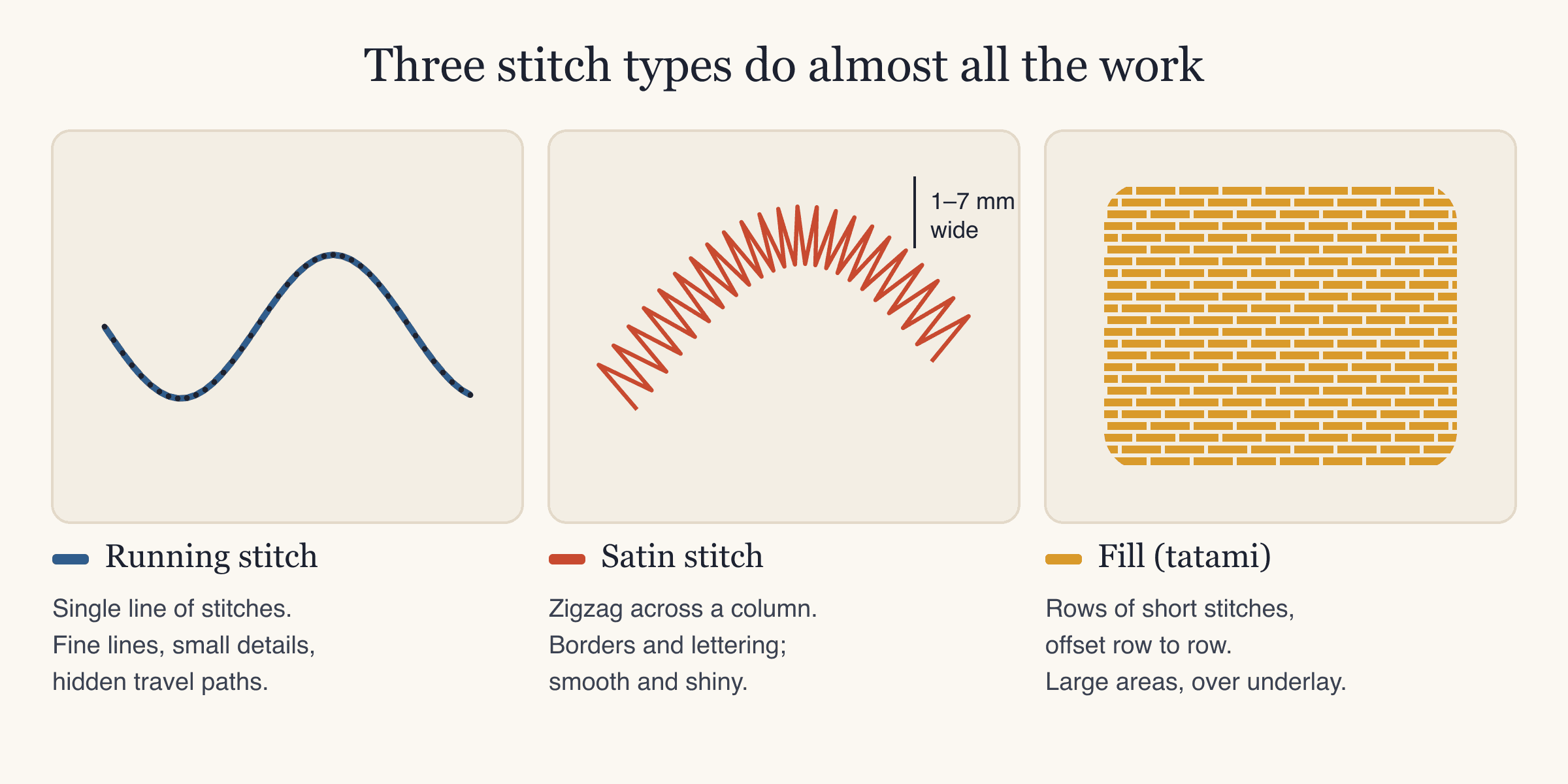
Stitch direction matters too. Fill rows catch the light differently depending on their angle, so neighboring shapes with different angles look like different shades. Satin should run across the column, turning with curves, like the stitches in a letter "S".
Step 5: Add underlay, density and pull compensation
This is where most do-it-yourself digitizing goes wrong, and you can't see the problem until you sew.
Underlay is a light layer of stitches sewn first, under the visible stitching. It anchors the fabric to the stabilizer, lifts the top stitches so they look fuller, and stops fabric texture poking through. Bigger fills and satins need more underlay; tiny details need little or none.
Density is how close the rows of stitches are. Too dense and the design turns stiff and bulletproof, with thread breaks and needle holes. Too open and fabric peeks through. Stable wovens take tighter spacing; stretchy knits usually do better slightly more open.
Pull compensation is extra width added to shapes. Every stitch pulls the fabric in along its own direction, so a fill shape sews narrower than drawn, and a gap opens between the fill and its outline. The digitizer draws shapes slightly wider than the artwork and lets neighboring colors overlap a little so no fabric shows between them.
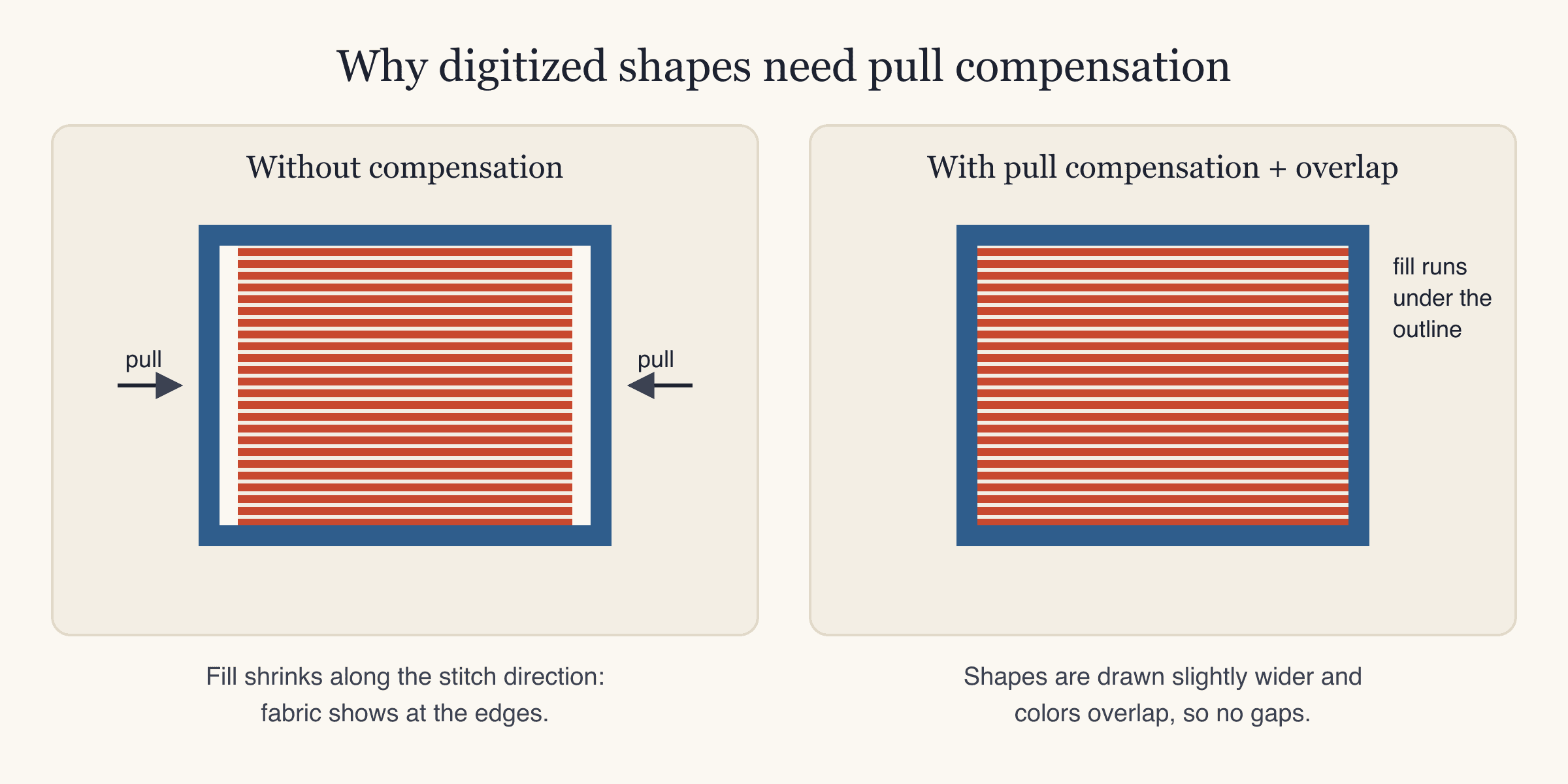
Knits pull more than wovens, so they need more compensation. As an example, for the fox design shown below, StitchFile's engine used 0.25 mm of pull compensation on woven fabric. The same engine uses 0.4 mm on T-shirt knit.
Step 6: Set the sewing order, save the file and test-sew
- Sew back to front. Background shapes first, details and outlines last, so outlines cover the edges of fills.
- Group by color. Sew all shapes of one color together where the layering allows, to cut thread changes.
- Hide travel stitches. Short moves between shapes can run under areas that will be stitched later. Longer jumps should be trimmed.
- Keep stitches short enough. Very long stitches snag. Many digitizers keep every stitch under about 7 mm.
- Save in your machine's format. See the table below.
- Test-sew on scrap of the same fabric with the same stabilizer before you stitch the real garment.
| Format | Machines |
|---|---|
| PES | Brother, Baby Lock |
| JEF | Janome (and many Elna machines) |
| DST | Tajima and most commercial/multi-needle machines |
| EXP | Melco, Bernina |
| VP3 | Husqvarna Viking, Pfaff |
DST and EXP don't store thread colors, so your machine will show its own default colors. Follow your color list, not the screen. More detail in embroidery file formats explained.
How to make an embroidery file with StitchFile
You can make every decision above by hand in desktop digitizing software, or hire a digitizer to do it. Both are valid routes, and both take time to learn or to wait for. StitchFile was built to make those same decisions automatically from your artwork, for the size and fabric you choose. This is how to make embroidery files with it:
- Upload your logo at stitchfile.app/convert or in the iPhone app. SVG, PNG and JPG all work (PNG/JPG up to 10 MB, SVG up to 5 MB). PNG and JPG images are redrawn as clean vector art automatically, so you can convert an image to an embroidery file without preparing a vector yourself.
- Pick the size and fabric. Presets cover left chest (90 mm), cap front (55 mm), patch (75 mm), sleeve (80 mm), 4×4 hoop (95 mm) and full back (250 mm), or type any size from 20 to 300 mm. Choose woven, T-shirt knit, polo piqué, denim, or towel & fleece. The fabric sets stitch density, pull compensation and the stabilizer we recommend.
- Check the free preview. In about 20 seconds you see your artwork next to a stitch simulation drawn from the real machine file, plus the stitch count, sew time, thread colors and the smallest hoop it fits. Lettering that's too small for the chosen size is flagged, with a size that would work.
- Edit for free on the website if needed. Remove parts, reduce colors, change to specific Brother thread colors, switch existing lettering between satin and fill, or choose Density → Fuller for more fill coverage. Each edit makes a new preview.
- Download. Every purchase includes PES, DST, JEF, EXP and VP3, a thread color key in sewing order with the stabilizer to use, and a report.
Behind step 3, the engine does what Steps 3–6 of this guide describe: satin that follows outlines and lettering, fill with underlay for bigger areas, colors layered slightly under each other with pull compensation, look-alike colors merged, travel stitches hidden or trimmed, and no stitch longer than 7 mm. Every file is checked before download for gaps between colors and stitches outside their shape.
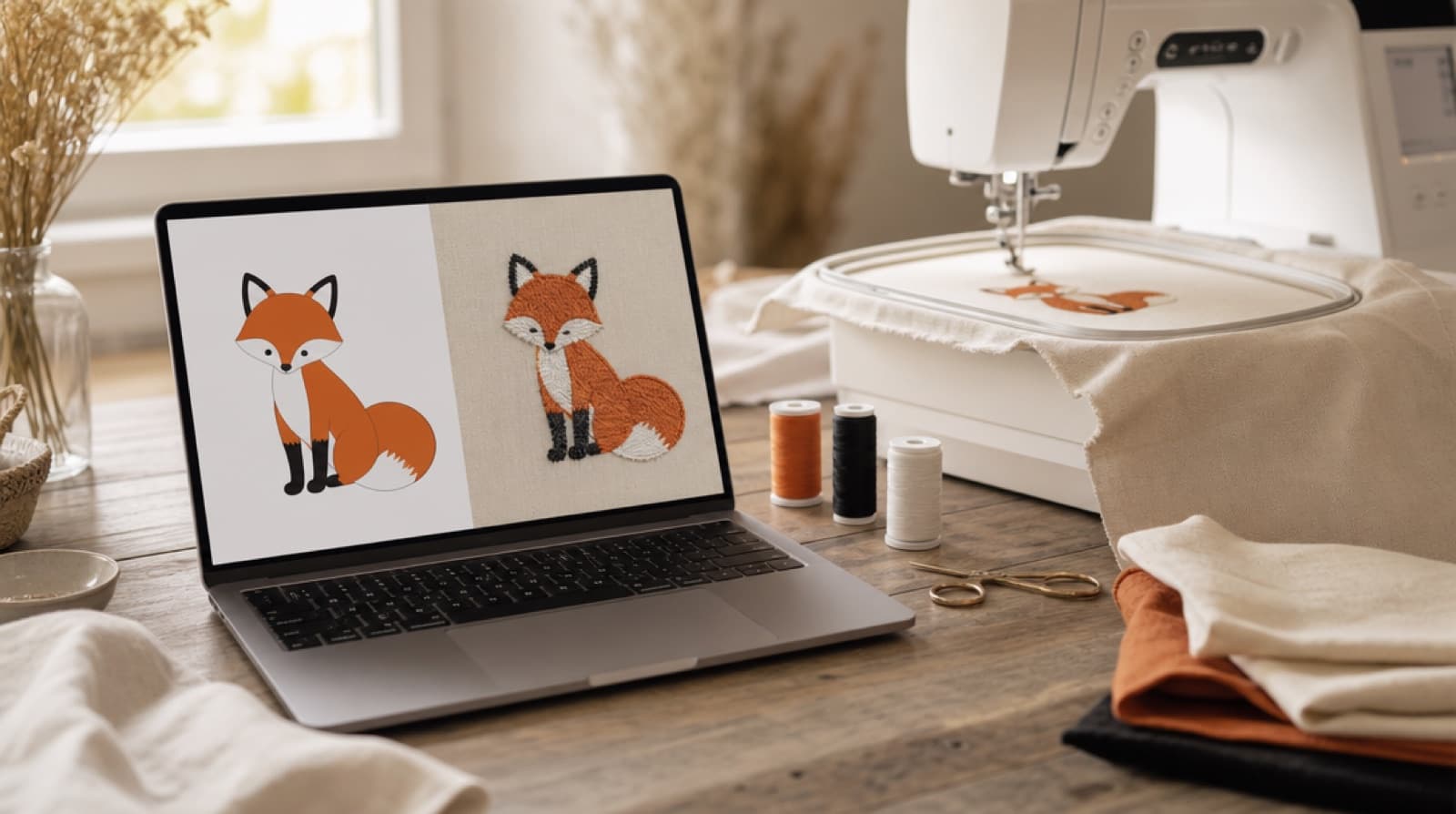
Here's a real example. We ran an open-source fox emoji through the engine at 90 mm on woven fabric:
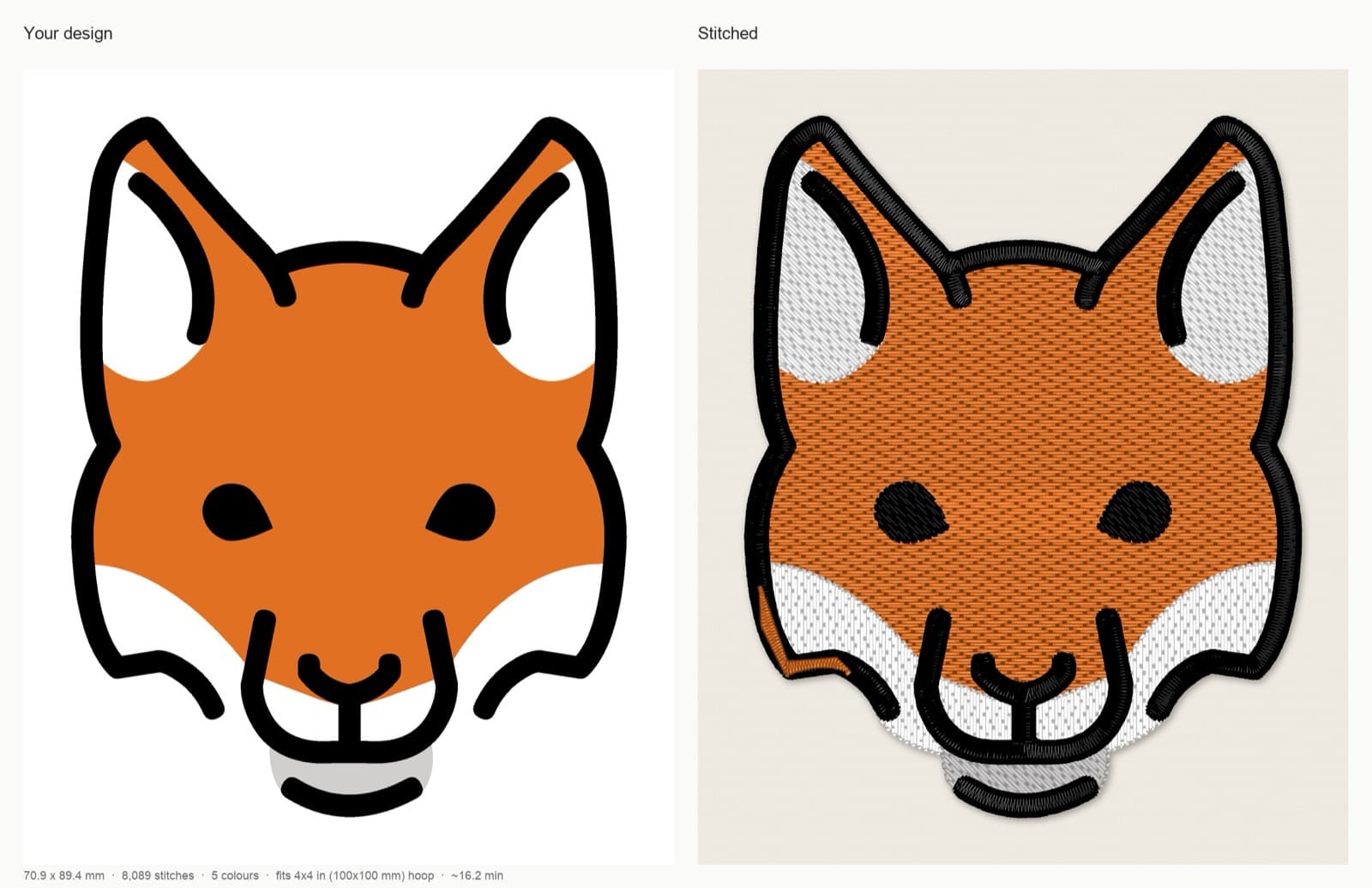
StitchFile stitch preview: the original artwork (left) and the stitch simulation drawn from the machine file (right).
Artwork: OpenMoji fox, CC BY-SA 4.0. StitchFile converted the artwork into the stitch preview shown here; these adaptations are shared under the same license.
The report for this design: 70.9 × 89.4 mm, 8,089 stitches, 26 trims, five color stops using four Brother threads (the orange is used twice, once for the fill and again at the end for satin details), fits a 4×4 in (100×100 mm) hoop, about 16.2 minutes at 700 stitches per minute. The recommended stabilizer for woven fabric is a medium tear-away.
Notice what changed between the two panels. The black outlines became satin columns, the orange and white areas became fills with visible row texture, and the fill colors run slightly under the black outlines so no fabric shows at the edges. That's pull compensation and overlap doing their job.
Common mistakes when you digitize embroidery
| Mistake | What happens | Fix |
|---|---|---|
| Starting from a small, blurry image | Wobbly edges, lost details | Use the original logo file, as large as possible |
| Choosing the size last | Text too small, settings wrong for the real size | Decide size and fabric first; re-digitize for big size changes |
| Keeping every color | Many thread changes, long sew time | Merge look-alike colors |
| Satin columns that are too wide | Loose, snagging stitches | Switch wide shapes to fill |
| No underlay | Fabric texture shows, stitches sink, shapes shift | Underlay under fills and satins |
| No pull compensation | Gaps between fill and outline | Widen shapes slightly and overlap colors |
| Lettering under 5 mm | Letters merge into blobs | Bigger design or drop the small text |
| Skipping the test sew | Problems discovered on the customer's shirt | Always test on scrap with the same stabilizer |
| Wrong stabilizer | Puckering, outlines out of register | Match stabilizer to fabric; see below |
That last row causes more failed stitch-outs than the file itself. Puckering and misaligned outlines usually come from hooping and stabilizer, so pair your file with the right backing. Our embroidery stabilizer guide covers which to use on each fabric.
Tips for better results
- Simple logos stitch best. Flat colors, clear edges and bold shapes: badges, mascots, icons, lettering.
- Think about the garment color. White lettering on a navy shirt needs a white thread, even if the logo file has no white in it. Light thread on dark fabric often benefits from a slightly fuller fill.
- One file per size. If you need the logo on a cap and on a jacket back, make two files.
- Count the sew time. A dense 250 mm back design can take much longer than a left-chest logo. Fewer colors and smaller filled areas shorten it.
- Check your hoop. The design has to fit your machine's maximum embroidery area. A 4×4 in hoop holds about 100×100 mm; a 5×7 in hoop about 130×180 mm.
FAQ
Can I digitize embroidery for free?
You can make the decisions yourself with desktop digitizing software, though learning it takes time. With StitchFile, the upload, stitch preview and edits are free; you pay only to download the machine files ($4.99 for a single design, all five formats included). Check the preview first to see whether the result works for you.
How long does it take to digitize a logo?
Doing it by hand can take anywhere from minutes for simple lettering to hours for a detailed logo, plus test sews. StitchFile produces the files and preview in about 20 seconds; images take a little longer, and the AI clean-up option takes about a minute.
Can I convert an image to an embroidery file directly?
Not by renaming or exporting it. A PNG or JPG has to be digitized into stitches first. StitchFile accepts PNG and JPG and redraws them as clean vector art before digitizing, so a sharp image works well. Photos are simplified into flat-color art and aren't covered by our sew-out guarantee.
What file format do I need for my embroidery machine?
Brother and Baby Lock read PES, Janome reads JEF, Tajima and most multi-needle machines read DST, Melco and Bernina read EXP, and Husqvarna Viking and Pfaff read VP3. Many machines read more than one; your manual lists them.
Why does my digitized logo pucker or have gaps?
Puckering usually comes from the wrong stabilizer or loose hooping, and gaps between colors from fabric shifting or missing pull compensation. Use the stabilizer matched to your fabric, hoop firmly without stretching, and make sure the file was digitized for that fabric type.
What's the smallest text I can embroider?
Aim for letters at least about 5 mm tall on woven and denim, 6 mm on T-shirt knit and polo piqué, and 7 mm on towels and fleece. Smaller letters tend to fill in.
Try it with your own logo
Digitizing comes down to a handful of decisions: stitch type, density, underlay, pull compensation and order, all tuned for one size and one fabric. Get the artwork clean, choose the size first, and always test-sew.
If you'd rather skip the manual work, upload your logo to StitchFile and check the free stitch preview. You'll see the stitch count, the hoop it needs and any small-lettering warnings before you decide to download.