Embroidery guide
Embroidery File Formats Explained: PES, DST, JEF, EXP and VP3
Embroidery file formats explained: which machines read PES, DST, JEF, EXP and VP3, what each file stores, and how to get the file onto your machine by USB.
The short answer
- Embroidery file formats are machine-specific. Use PES for Brother and Baby Lock, JEF for Janome, DST for Tajima and most commercial machines, EXP for Melco and Bernina, and VP3 for Husqvarna Viking and Pfaff.
- An embroidery file is not a picture. It is a list of needle moves, so you can't make one by renaming a PNG or JPG.
- DST and EXP don't store thread colors. PES, JEF and VP3 do, but the machine shows them using its own thread chart.
- To load a file: unzip it, copy only your format to the top folder of a FAT32 USB stick, and pick it from the machine's USB menu.
If you have ever downloaded a design and found a folder full of .pes, .dst, .jef, .exp and .vp3 files, this guide is for you. Embroidery file formats look confusing, but the rule is simple: each machine brand reads one main format, and many read a few more. Below you'll find what each embroidery file type stores, which machines read it, what really changes between formats, and how to get the file onto your machine by USB without the "no designs found" message.
What an embroidery file type actually is
An image file (PNG, JPG, SVG) describes how a picture looks. An embroidery file describes how a needle should move. It is a long list of instructions:
- Stitch: move the fabric this far and put the needle down.
- Jump: move without stitching (to the next area).
- Trim: cut the thread.
- Color change (stop): pause so you, or a multi-needle machine, can switch thread.
- End.
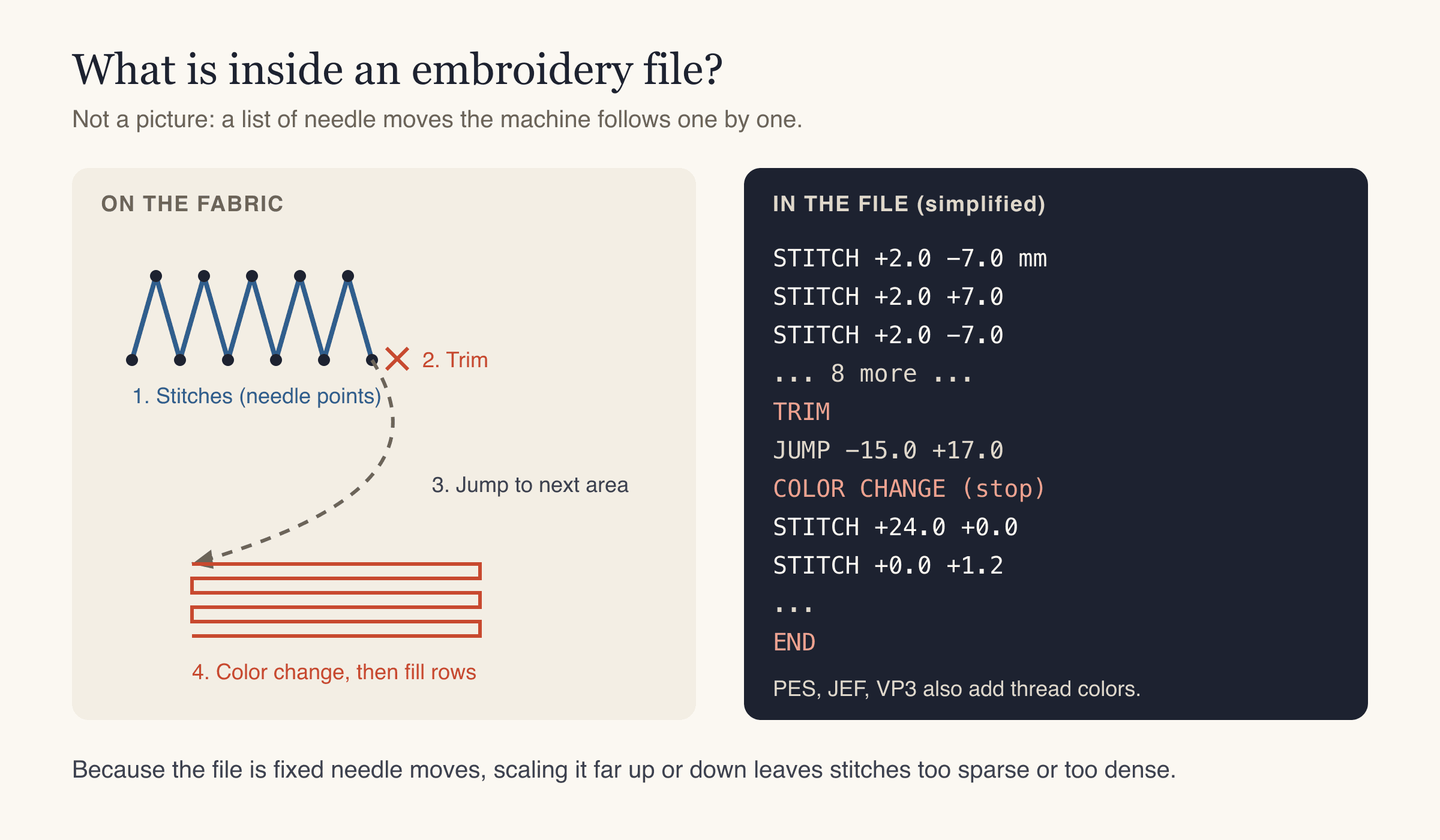
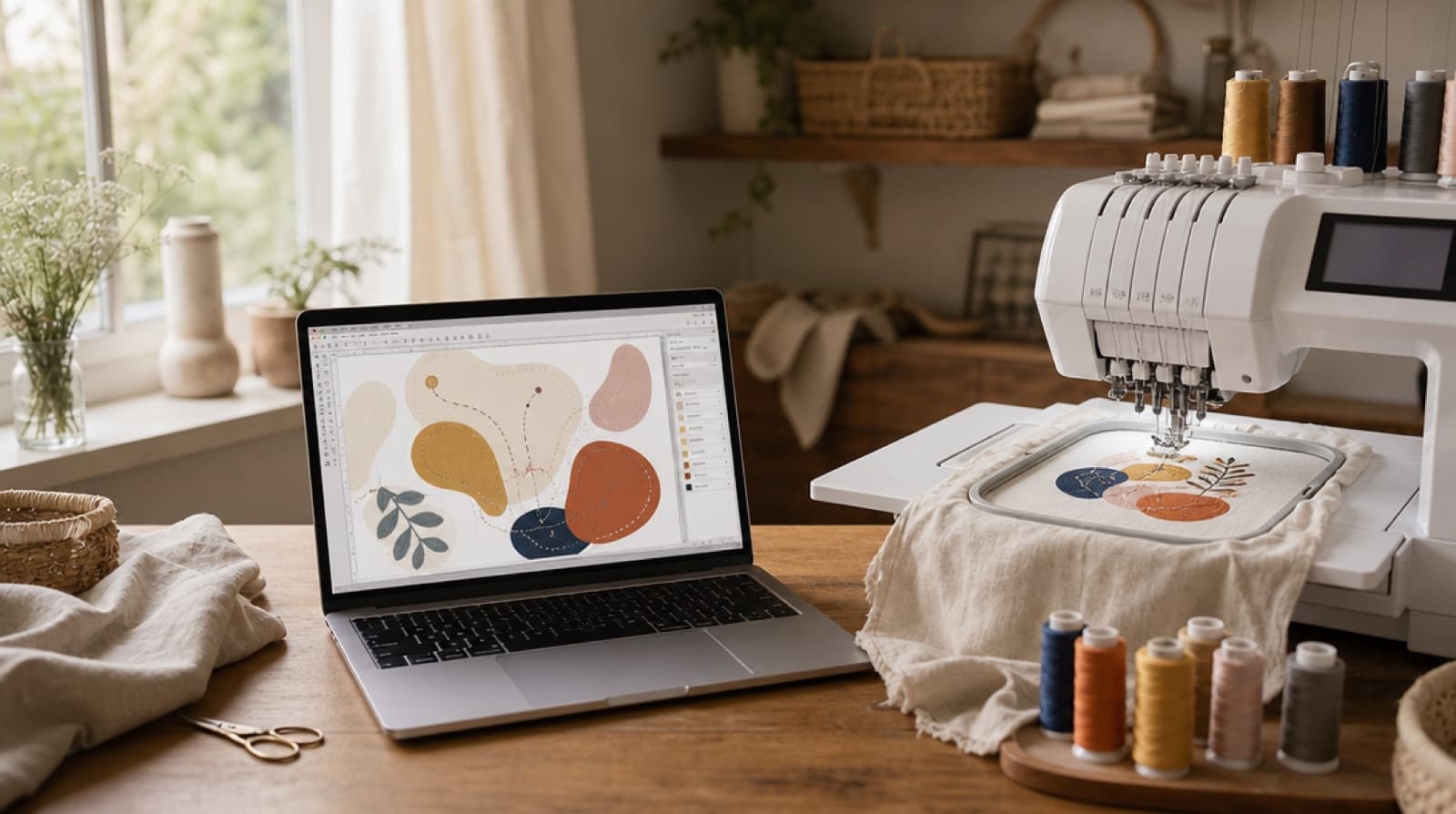
That's why you can't turn a logo into an embroidery file by renaming it or "saving as PES" from a photo editor. Someone, or something, has to decide where every stitch goes: which areas get a fill stitch (rows of stitches that cover a shape), which get a satin stitch (smooth zigzag columns used for borders and lettering), where the underlay goes (a light base layer that holds the fabric down), and in what order. That process is called digitizing. Our guide on how to digitize a logo for embroidery covers it in detail.
It also explains why stitch files don't resize well. If you enlarge a stitch file by 50%, the stitches get longer and the fill rows spread apart. If you shrink it a lot, the stitches pile up and the area gets stiff and bulletproof. A common rule of thumb is to keep simple resizing within about 10–20%. For bigger changes, the design should be re-digitized at the new size.
The five embroidery file formats you'll meet most
There are dozens of embroidery file formats, but five cover the vast majority of home and small-shop machines.
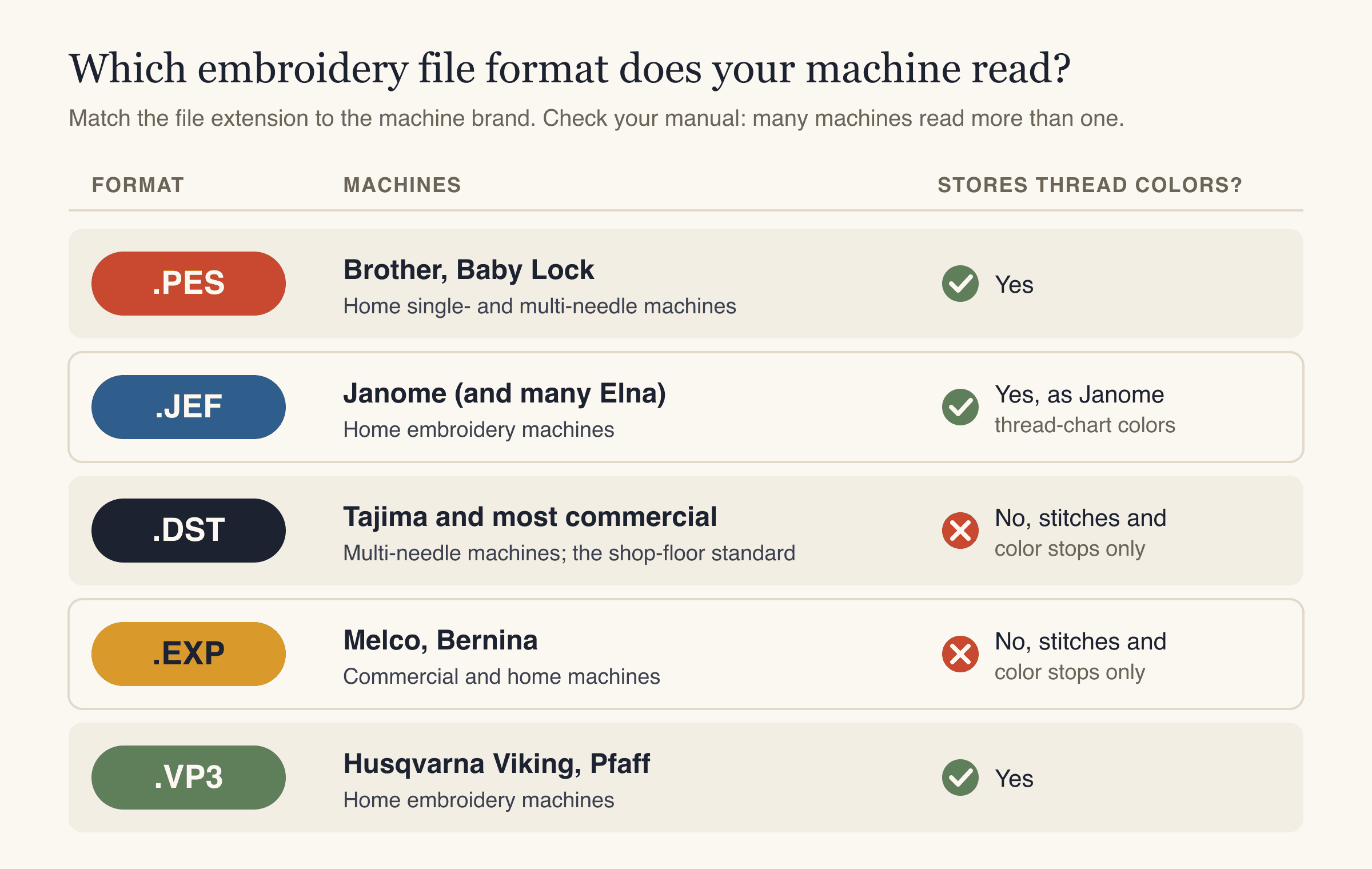
| Format | Main machines | Stores thread colors? | Notes |
|---|---|---|---|
| PES | Brother, Baby Lock | Yes | The Brother embroidery file format; also includes a small preview image |
| JEF | Janome, many Elna | Yes, as Janome thread-chart colors | The Janome embroidery file format |
| DST | Tajima, most commercial multi-needle machines | No | The industry standard for shops |
| EXP | Melco, Bernina | No | Stitches and color stops only |
| VP3 | Husqvarna Viking, Pfaff | Yes | Used by current Viking and Pfaff models |
Many machines read more than one of these. Your machine's manual (usually the "embroidery data" or "USB" section) lists every format it accepts.
PES: the Brother embroidery file format
What is a PES file? A PES file is Brother's embroidery format, read by Brother and Baby Lock machines. Alongside the stitches it stores the thread colors and a small thumbnail, which is what you see on the machine's screen when you browse a USB stick. Inside a PES file is a section called PEC, which holds the stitch data the machine actually sews.
PES has been updated several times over the years (you may see "PES version" in some descriptions). Current Brother home machines read the common versions without trouble. If an older machine refuses a PES file that a newer one opens, the version is a possible cause.
If you own a Brother, the PES file is the one to use. Many Brother models also accept DST, but you lose the stored colors.
DST: the Tajima and commercial standard
A DST embroidery file comes from Tajima, a commercial machine maker, and it has become the shared language of embroidery shops. Almost every multi-needle machine reads DST, which is why digitizers often send DST by default.
DST keeps only the essentials: stitch positions, jumps, trims and color stops. It does not store thread colors. When you open a DST file, the machine or the screen shows its own default colors, which can look odd (a red logo might appear in green). That's expected. You follow a thread color chart, not the screen.
JEF: the Janome embroidery file format
A JEF file is the Janome embroidery file format, also used by many Elna machines. It stores thread colors, but as references to Janome's own thread chart. So a color in a JEF file is "the nearest Janome thread", not an exact shade. You can see this in the real files below: the same design's colors come out slightly different in the JEF version.
Older Janome machines used other formats (such as SEW). If your Janome is older, check the manual before you buy designs.
EXP: Melco and Bernina
EXP comes from Melco and is read by Melco commercial machines and many Bernina home machines. Like DST, it stores stitches and color stops, not thread colors. Follow the color list that came with the design.
VP3: Husqvarna Viking and Pfaff
A VP3 file is the format for current Husqvarna Viking and Pfaff machines. It stores thread colors along with the stitches. Older Viking machines used HUS and older Pfaff machines used PCS, so again, check your manual if your machine is a few generations old.
Other extensions you might see
You may also come across XXX (Singer), HUS and PCS (older Viking and Pfaff), SEW (older Janome) and PEC (the stitch part of a PES file). You'll also see editable "working files" saved by desktop digitizing software. Those are for editing on a computer; your machine needs one of the machine formats above.
Same design, five files: what really changes
We ran one design through StitchFile at 90 mm on the woven fabric setting and then opened each of the five files it produced. The stitches are the same in all of them. What differs is the packaging.
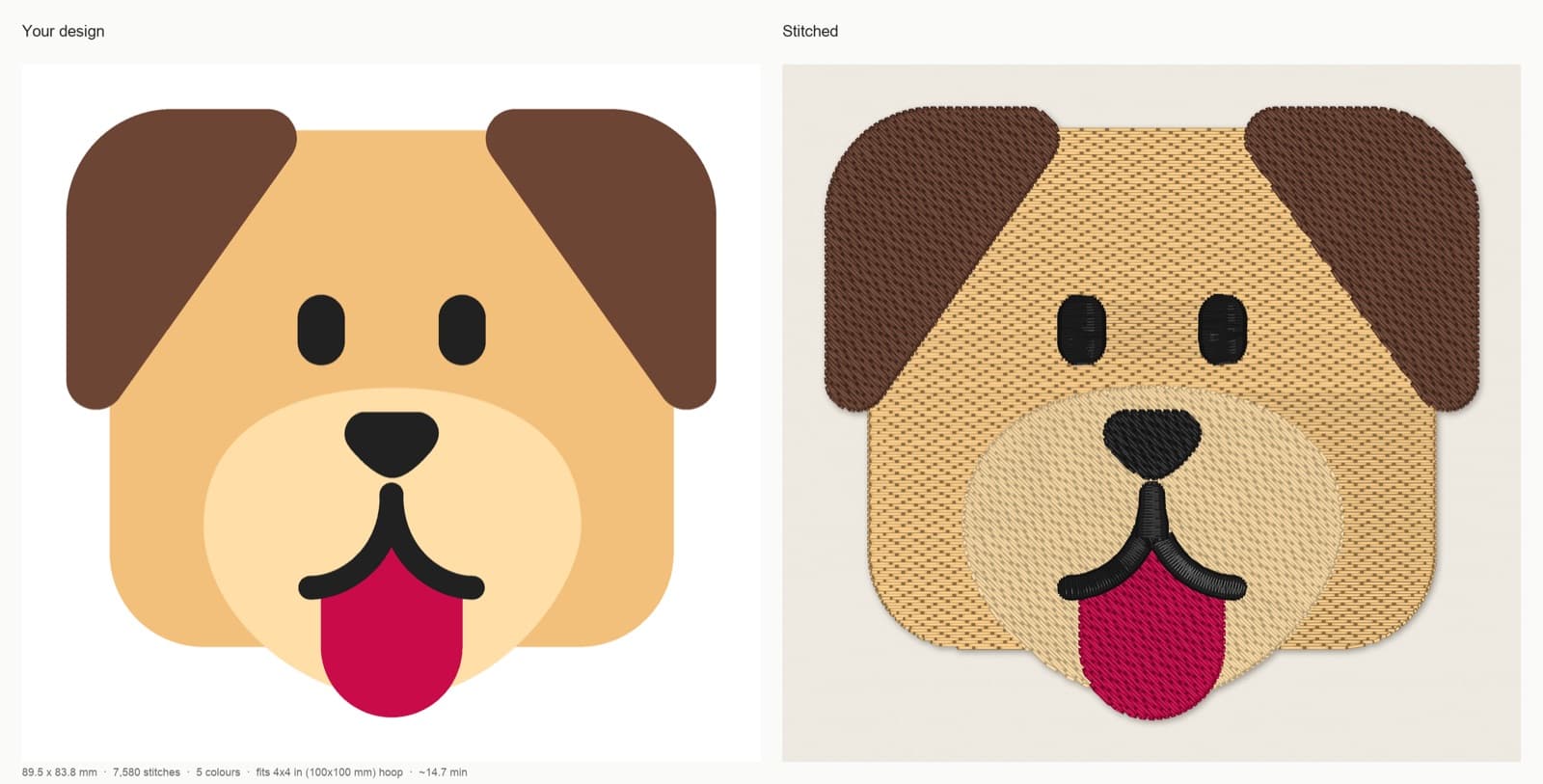
Dog artwork: Microsoft Fluent Emoji, copyright (c) Microsoft Corporation, MIT License. Stitch preview generated by StitchFile from the artwork.
| File | Size on disk | Thread colors stored | What the machine shows |
|---|---|---|---|
fluent_dog.pes | 49 KB | 5, same as the design | The design's colors, mapped to its thread chart |
fluent_dog.vp3 | 16 KB | 5, same as the design | The design's colors |
fluent_dog.jef | 16 KB | 5, snapped to Janome thread colors | Close shades (the red became a deeper red) |
fluent_dog.dst | 24 KB | None | Machine default colors |
fluent_dog.exp | 15 KB | None | Machine default colors |
Three takeaways:
- File size tells you nothing about quality. The PES is the biggest because it carries a preview image and extra header data, not more stitches.
- Colors on the screen are a guide, not the truth. With DST and EXP they're random defaults. With PES, JEF and VP3 they're the nearest match in a thread chart. Always sew from the printed thread color list.
- You don't lose stitch quality by picking one format over another. If the design was digitized well, each format sews the same.
This is also why we include all five formats in every StitchFile purchase. You upload your logo or artwork (SVG, PNG or JPG), choose the size and fabric, check the free stitch preview, and the download has PES, DST, JEF, EXP and VP3 plus a thread color key in sewing order with the stabilizer to use. If you change machines later, or send the design to a friend with a different brand, the right file is already in the folder.
How to choose the right embroidery file format
- Find your machine's make and model. It's on the front of the machine or on a sticker at the back.
- Look up the formats it reads. The manual lists them. If you can't find the manual, the maker's support site usually has a PDF.
- Prefer the native format. Brother and Baby Lock: PES. Janome: JEF. Husqvarna Viking and Pfaff: VP3. Bernina: EXP. Tajima and most commercial machines: DST.
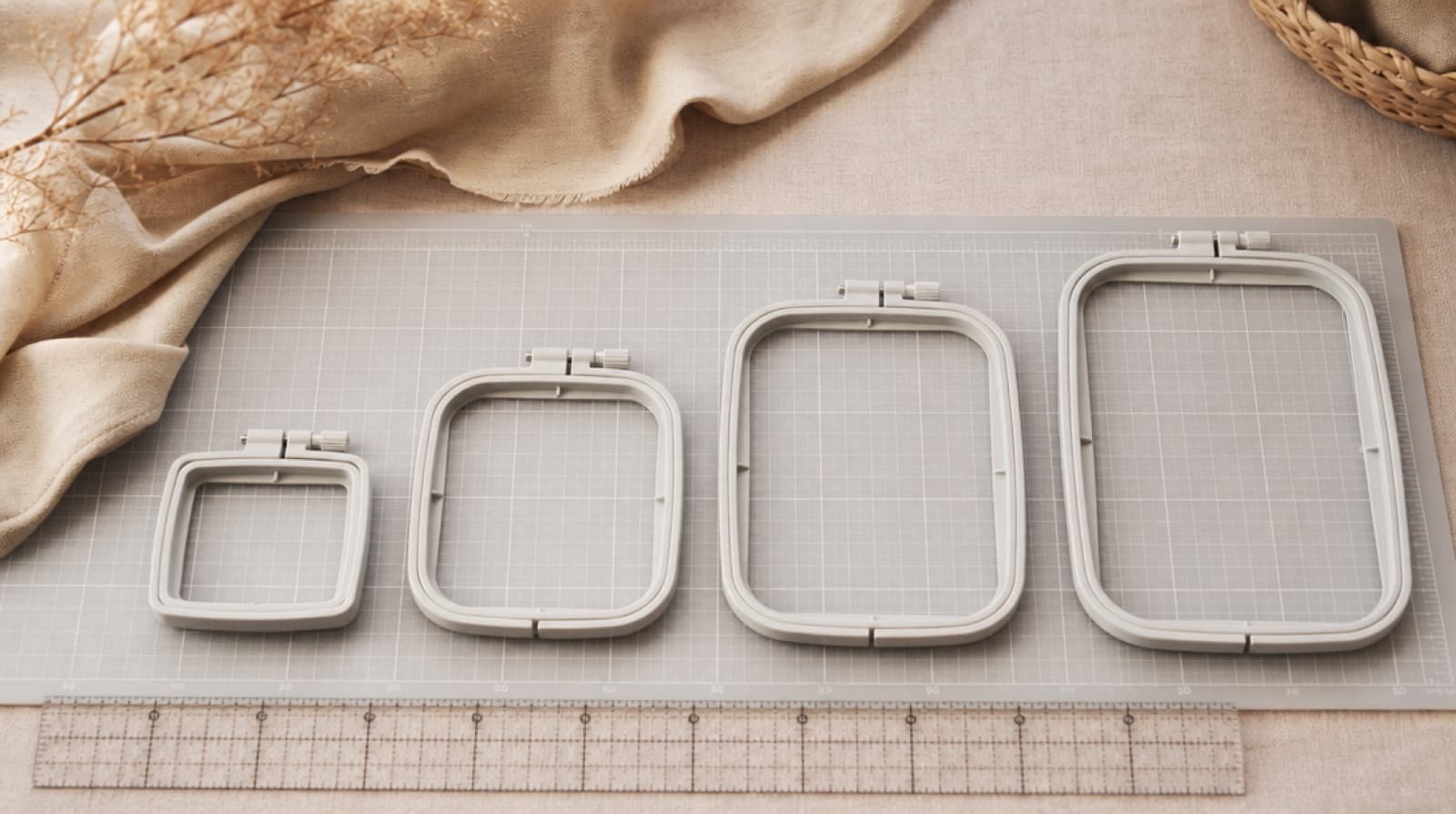
- Check the design fits your hoop. The format doesn't matter if the design is bigger than your machine's embroidery area. See our guide to embroidery hoop sizes for common sewing fields.
- Keep the color list. Especially with DST or EXP, print or save the thread list that came with the design.
Getting the file onto your machine with a USB stick
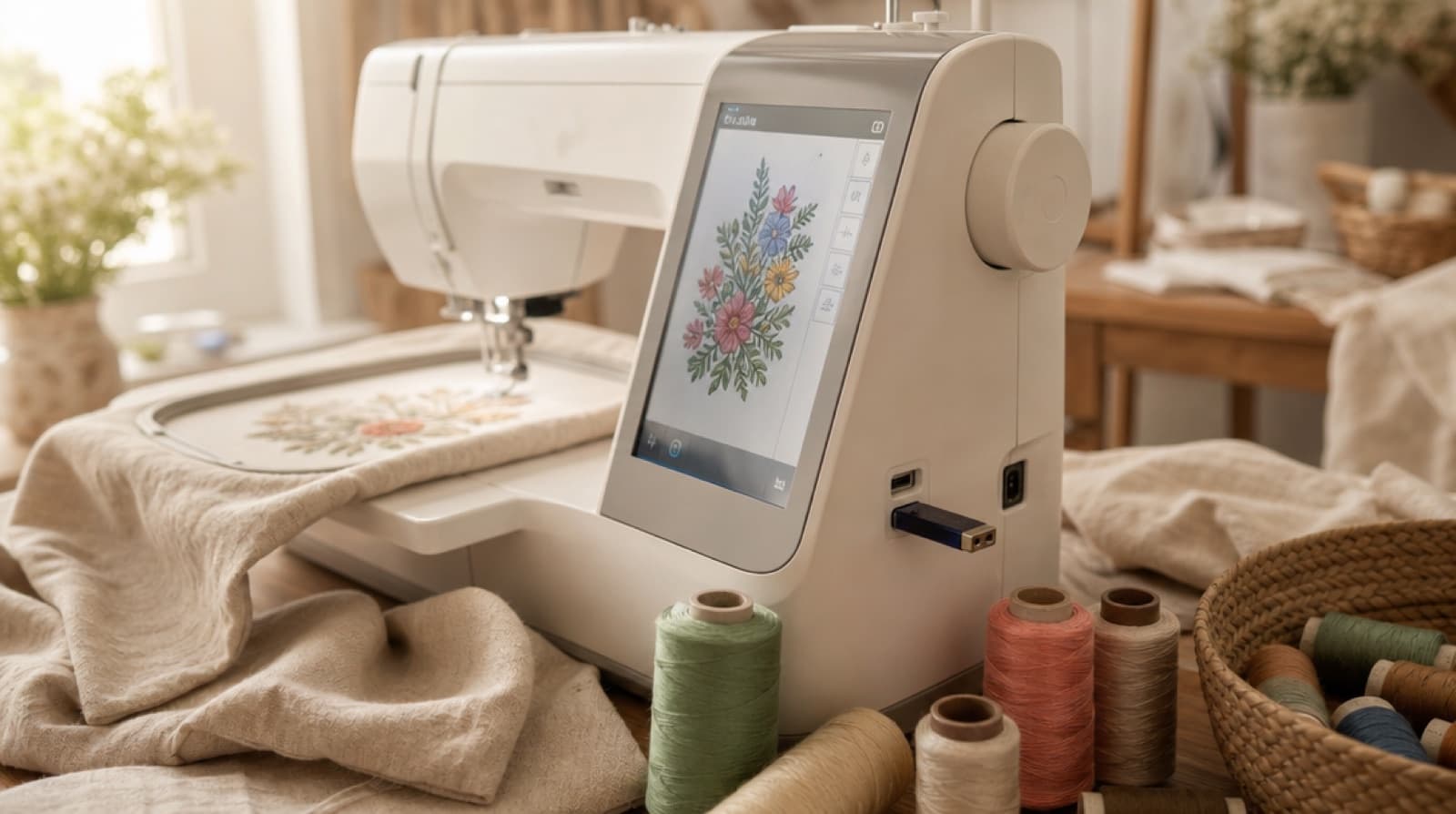
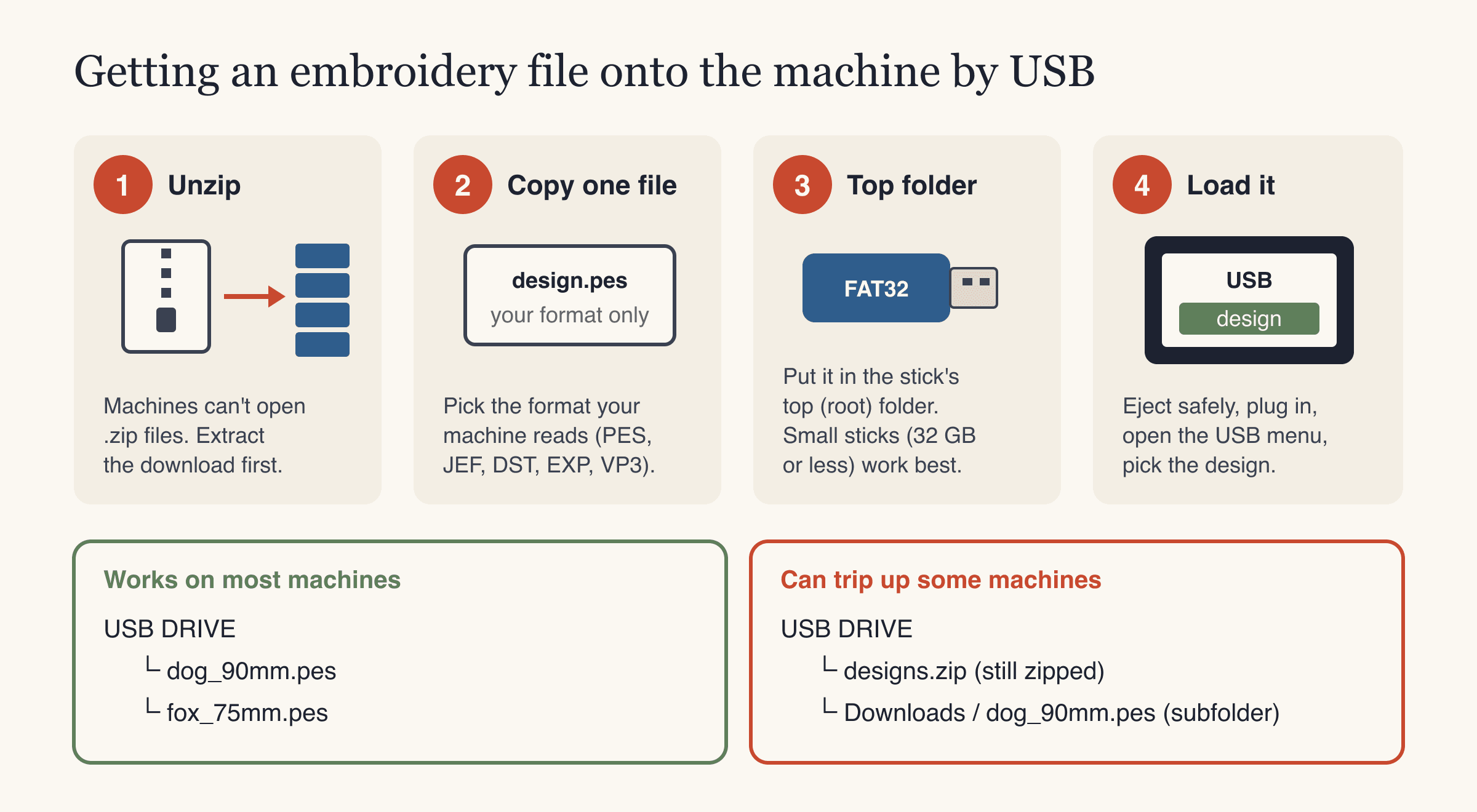
USB is the most common way to move designs from a computer to an embroidery machine. A plain USB stick is all you need; there's no special USB for embroidery machines, but the way it's set up matters.
Step by step
- Unzip the download first. Machines can't open
.zipfiles. On Windows, right-click the zip and choose Extract All. On a Mac, double-click it. - Pick the file for your machine. For a Brother, that's the
.pesfile, for exampledesign_90mm.pes. You don't need to copy all five. - Use a FAT32 stick, ideally 32 GB or smaller. Many embroidery machines only read FAT32, and some struggle with large sticks. If the machine doesn't see the stick, reformatting it as FAT32 on your computer usually fixes it (this erases the stick).
- Copy the file to the top folder of the stick. Not inside "Downloads" or another folder. Some machines only look at the top level.
- Keep file names short and simple. Some older machines only show the first few characters, or skip names with unusual symbols.
- Eject the stick safely, plug it into the machine, open the USB or memory menu, and select the design.
- Choose the right hoop, hoop your fabric with the recommended stabilizer, and thread the colors in the order on the color key.
- Test-sew on scrap fabric of the same type before you stitch the real garment.
Other ways to transfer
- Wireless: some newer machines receive designs through the machine maker's own app or software. Import the file in your machine's format there.
- Phone or tablet: save the file to your device, then copy it to a USB stick with an adapter, or send it to a computer first.
- Older machines: some use memory cards or a cable to a computer instead of USB. Your manual describes the method.
Fixing common file and USB problems
| Problem | Likely cause | What to try |
|---|---|---|
| Machine doesn't see any designs | File still zipped, in a subfolder, or stick not FAT32 | Unzip, copy to the top folder, use a FAT32 stick of 32 GB or less |
| Design doesn't show up but others do | Wrong format for the machine, or a long or unusual file name | Use your machine's native format; rename to something short |
| "Design too large" or "won't fit" | The design is bigger than your hoop or embroidery area | Use a smaller size made for your hoop |
| Colors on screen look wrong | DST and EXP store no colors; PES, JEF, VP3 are mapped to the machine's thread chart | Follow the printed color key, not the screen |
| Too many thread stops | The design has many colors, or a color repeats in the sewing order | Reduce the colors in the design before making the file |
If the file loads but the stitch-out looks wrong (puckering, gaps, loose threads), the format is rarely the cause. Our machine embroidery troubleshooting guide goes through stabilizer, tension and hooping fixes.
Common mistakes with embroidery files
- Renaming an image to .pes. The machine will reject it or show nothing. An embroidery file has to be digitized.
- Copying the whole zip to the USB stick. Unzip first and copy only the file you need.
- Burying the file in folders. Put it at the top level of the stick.
- Trusting the screen colors. Especially with DST and EXP. Sew from the color list.
- Resizing a stitch file a lot on the machine. Small tweaks are fine. Big changes need a file made at the new size.
- Buying a design that's too big for your hoop. Check the dimensions against your machine's maximum embroidery area before you buy.
- Skipping the test sew. Every file should be tried on scrap fabric with the same stabilizer first.
FAQ
What is the most common embroidery file format?
For home machines, PES is very widely used because Brother and Baby Lock machines read it. For commercial and multi-needle machines, DST is the standard. Most design sellers offer both, plus JEF, EXP and VP3.
What is a PES file used for?
A PES file is an embroidery design for Brother and Baby Lock machines. It stores the stitches, thread colors and a small preview image. You copy it to a USB stick (or send it wirelessly on some models) and select it on the machine.
Can a Brother machine read DST files?
Many Brother models read DST as well as PES, but check your manual to be sure. A DST file has no thread colors, so the screen will show default colors. Use the design's color list when you thread the machine.
Why does my embroidery machine say no design found on the USB?
Usually the file is still inside a zip, sits in a subfolder, or the stick isn't formatted as FAT32. Unzip the download, copy just your format to the top folder of a FAT32 stick (32 GB or smaller works best), and try again. Also check that the file is a format your machine reads.
Which embroidery file format is best?
The best format is the one your machine reads natively: PES for Brother, JEF for Janome, VP3 for Husqvarna Viking and Pfaff, EXP for Bernina and DST for commercial machines. The stitch quality is the same across formats; what changes is whether thread colors are stored.
Can I convert a JPG or PNG into an embroidery file?
Yes, but it has to be digitized, not just saved in a new format. StitchFile does this automatically: upload a PNG, JPG or SVG, choose the size and fabric, check the free stitch preview, and download all five machine formats.
Get the right file for your machine
Embroidery file formats come down to one question: which one does your machine read? Once you know that, the rest is unzipping, copying one file to the top of a FAT32 stick and sewing from the color list.
If you're starting from a logo or artwork rather than a finished design, StitchFile turns it into PES, DST, JEF, EXP and VP3 in about 20 seconds, with a free stitch preview so you can check the size, colors and smallest hoop before you pay.