Embroidery guide
Embroidery Digitizing Software: Free, Mac and Online Options
What embroidery digitizing software does, the three routes to a machine file, what to check (Mac, formats, cost per design) and how to test for free.
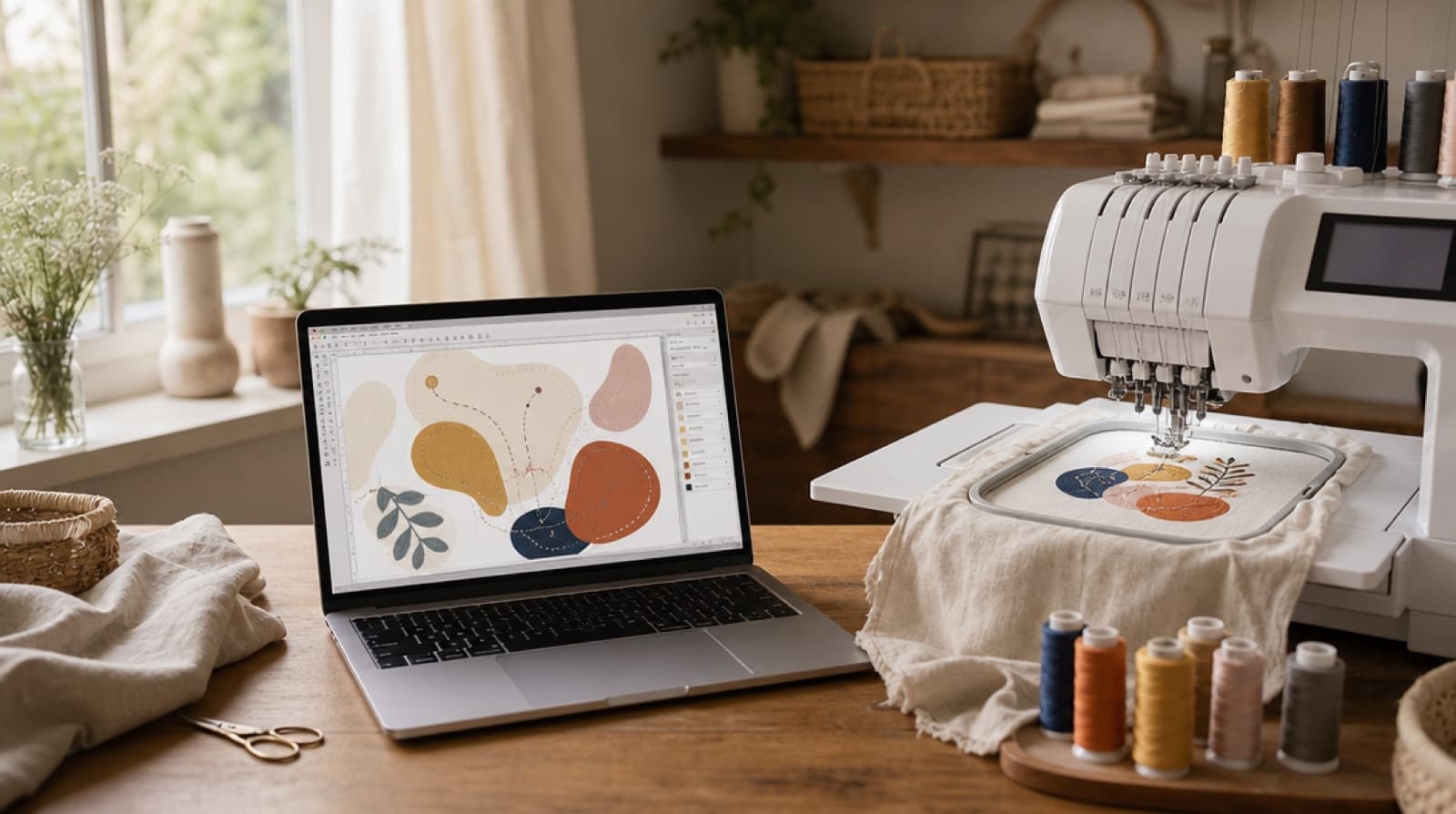
Short answer: Embroidery digitizing software turns artwork into a stitch file your machine can sew (PES, DST, JEF, EXP or VP3). You have three routes: learn desktop digitizing software, hire a digitizer, or use an online auto-digitizer. If you sew logos, badges, lettering or flat-color art, an online tool that runs in any browser (Mac included) and shows a free stitch preview is the quickest way to find out if your design will work before you pay anything.
Embroidery digitizing software is the step between a picture and a stitch-out. Your machine can't read a PNG or a logo file. It needs a list of needle positions, stitch types, colors and trims, saved in its own format. Making that list is called digitizing.
This guide explains what the software actually does, the three ways to get a machine file, what to check before you choose (especially if you're on a Mac or want something free), and the mistakes that cost people the most time.
What embroidery digitizing software actually does
Whatever route you take, the same decisions get made. The only difference is whether you make them by hand, someone else makes them, or software makes them automatically.
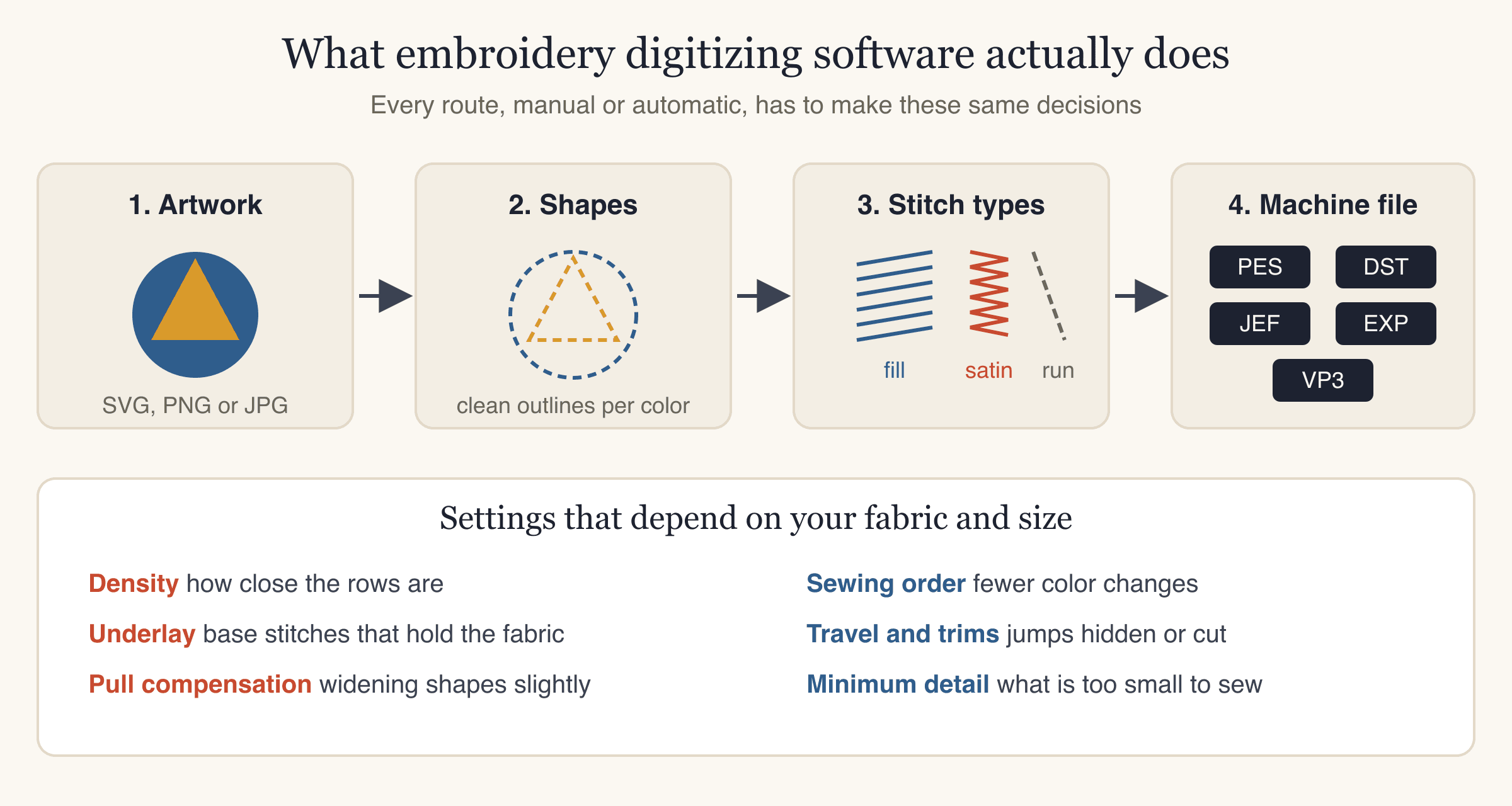
- Read the artwork. The software takes your image (SVG, PNG or JPG) and works out which areas are which color.
- Turn it into clean shapes. Each color becomes a set of outlines. Blurry edges, shadows and tiny specks are tidied or dropped, because thread can't reproduce them.
- Choose a stitch type for every shape. Large areas get fill stitches (rows of stitches that cover an area). Narrow borders and lettering get satin stitches (tight zigzags that look shiny and smooth). Fine lines get running stitches (single lines of stitches).
- Apply settings for the fabric and size. This is where most bad files go wrong:
- Density: how close the rows of stitches sit. Too dense and the design gets stiff and can pucker; too loose and fabric shows through.
- Underlay: a layer of stitches sewn first to hold the fabric down and give the top stitches something to sit on.
- Pull compensation: making shapes slightly wider, because thread pulls fabric inward as it sews.
- Set the sewing order. Shapes of the same color are grouped so the machine stops for fewer thread changes. Travel stitches (moves from one shape to the next) are hidden under later stitching or trimmed.
- Save the machine file. Brother and Baby Lock read PES, Janome reads JEF, Tajima and most commercial multi-needle machines read DST, Melco and Bernina read EXP, and Husqvarna Viking and Pfaff read VP3. More on that in embroidery file formats explained.
Notice that steps 4 and 5 depend on the fabric and the finished size, not just the artwork. A logo digitized for a 90 mm left chest on a woven shirt is not the right file for a 55 mm cap front or a fluffy towel. Good software asks you for both.
The three routes to an embroidery file
There's no single "best embroidery digitizing software" for everyone. The right choice depends on how many designs you make, what kind of artwork you have, and how much time you want to spend learning.
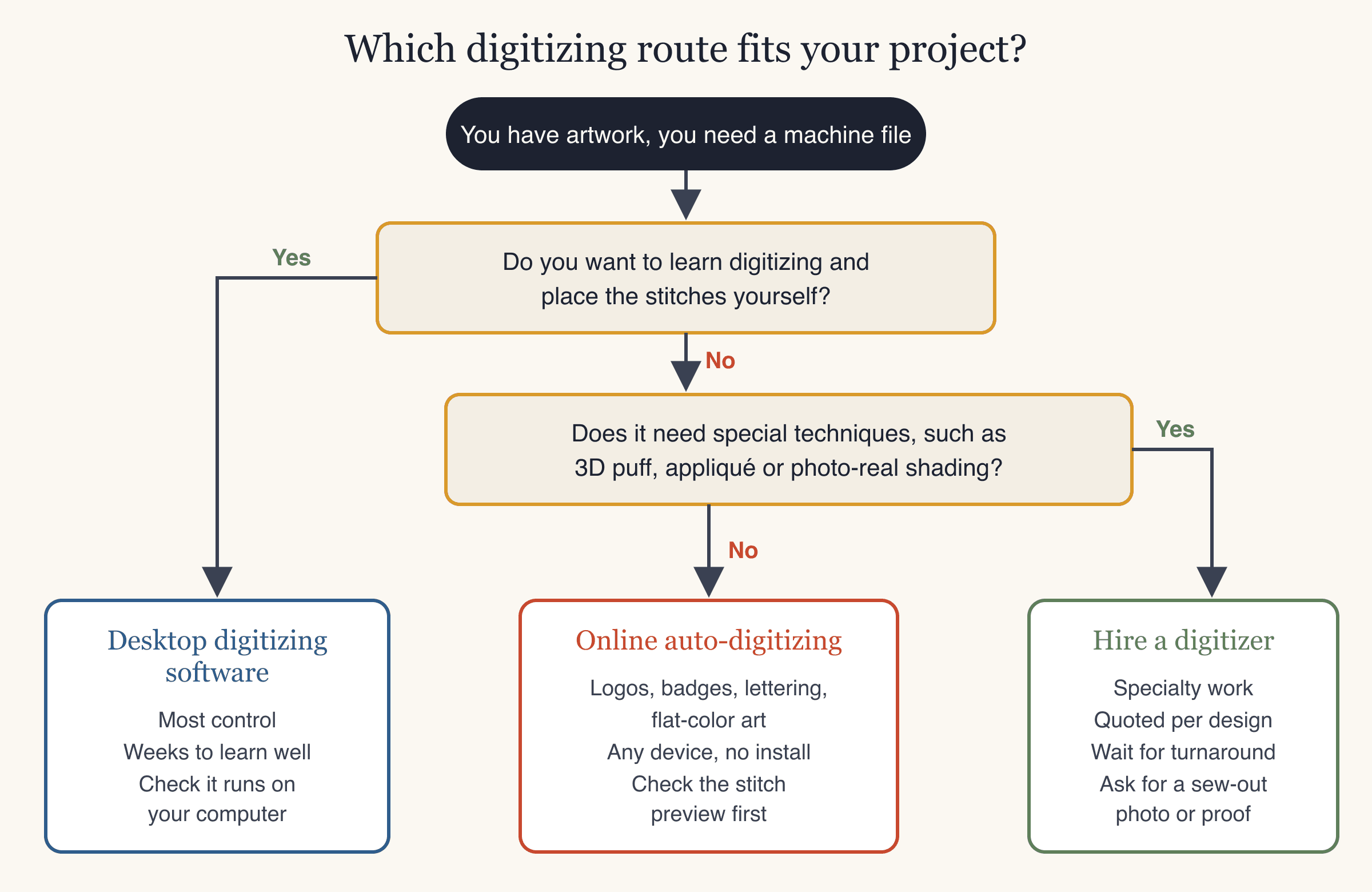
1. Desktop digitizing software
You install a program and build the design yourself: draw or trace shapes, assign stitch types, set density and underlay, and order the colors.
- Good for: people who enjoy the craft side of digitizing and want full control, or who need specialty techniques.
- Trade-offs: a real learning curve (the settings above take practice to get right), it must run on your computer's operating system, and pricing ranges from free open-source programs to paid licenses. Many paid programs are sold in tiers, with automatic digitizing and full manual control in the higher tiers.
2. Hiring a digitizer
A person digitizes your artwork for you and sends back the file.
- Good for: one-off specialty jobs such as 3D puff, appliqué, complex shading, or very small detailed work where a human judgment call matters.
- Trade-offs: you pay per design (usually quoted per job), you wait for turnaround, and changes go back and forth by message. Ask for a photo of a test stitch-out or a proof before you pay in full.
3. Online auto-digitizing
You upload artwork in a browser or app, choose a size and fabric, and the software digitizes it automatically.
- Good for: logos, badges, patches, mascots, icons and lettering with flat colors and clear edges. Also good when you're on a Mac, a Chromebook or a phone and can't install desktop software.
- Trade-offs: you have less fine control than with manual digitizing. Photos and heavily shaded art get simplified into flat colors. The quality depends on how well the tool handles fabric, size and lettering, which is why a stitch preview matters.
Quick comparison
| Desktop digitizing software | Hiring a digitizer | Online auto-digitizing | |
|---|---|---|---|
| Install needed | Yes | No | No (browser or app) |
| Works on Mac | Depends on the program | Yes (you just receive a file) | Yes, any browser |
| Learning curve | High | None | Low |
| Who sets density, underlay, order | You | The digitizer | The software, from your size and fabric |
| Time per design | Minutes to hours of your time | Turnaround time | Seconds to minutes |
| Cost model | Free to paid license | Per design | Per design or monthly plan |
| See it before paying | Depends | Ask for a proof | Look for a free preview |
Embroidery software for Mac: what to know
Mac users run into the same question over and over: "Will this run on my computer?"
- Desktop programs vary. Some digitizing programs have native Mac versions. Others are Windows-only, and on a Mac they need Windows running in a virtual machine, which adds cost and setup. Always check the system requirements before you buy, and use any free trial on the actual computer you'll use.
- Browser-based tools don't care. If a tool runs in a web browser, it works the same on a Mac, a Windows PC, a Chromebook or a tablet.
- The file transfer is the same on any computer. You download the file, unzip it, and copy the format your machine reads onto a USB stick. On a Mac, double-click the zip to unzip it.
StitchFile runs in any browser at stitchfile.app and in the StitchFile app for iPhone, so there's nothing to install on a Mac.
Free embroidery software: what "free" usually means
Searches for "free embroidery software" and "free embroidery digitizing software" turn up a few different things:
- Free open-source desktop digitizing programs. These are genuinely free. Expect the same learning curve as any manual digitizing software: you will set stitch types, density and underlay yourself.
- Free viewers and file converters. These open existing embroidery files or change one format into another. They don't digitize artwork. Converting a file between formats does not fix a design that was digitized for the wrong size or fabric.
- Free trials of paid programs, usually time-limited.
- Free previews from online digitizers. You upload, see what the design will look like stitched, and pay only if you want to download the machine file.
With StitchFile, you can upload artwork and see a free stitch preview without an account, within daily limits. A free account is required before editing or resizing a design. AI clean-up and background changes share a separate redraw allowance. You pay only when you download the files. That lets you check whether a design will stitch well before spending anything.
What to look for in embroidery digitizing software
Use this checklist whichever route you choose.
| Check | Why it matters |
|---|---|
| Runs on your device | A Windows-only program is no help on a Mac without extra setup. |
| Outputs your machine's format | PES for Brother and Baby Lock, JEF for Janome, DST for commercial machines, EXP for Melco and Bernina, VP3 for Husqvarna Viking and Pfaff. |
| Asks for fabric | Knits, towels and denim need different density, underlay and stabilizer. |
| Asks for finished size | Stitch settings change with size; resizing a finished stitch file a lot can cause problems. |
| Warns about small lettering | Text under about 5 mm tall rarely stitches cleanly. |
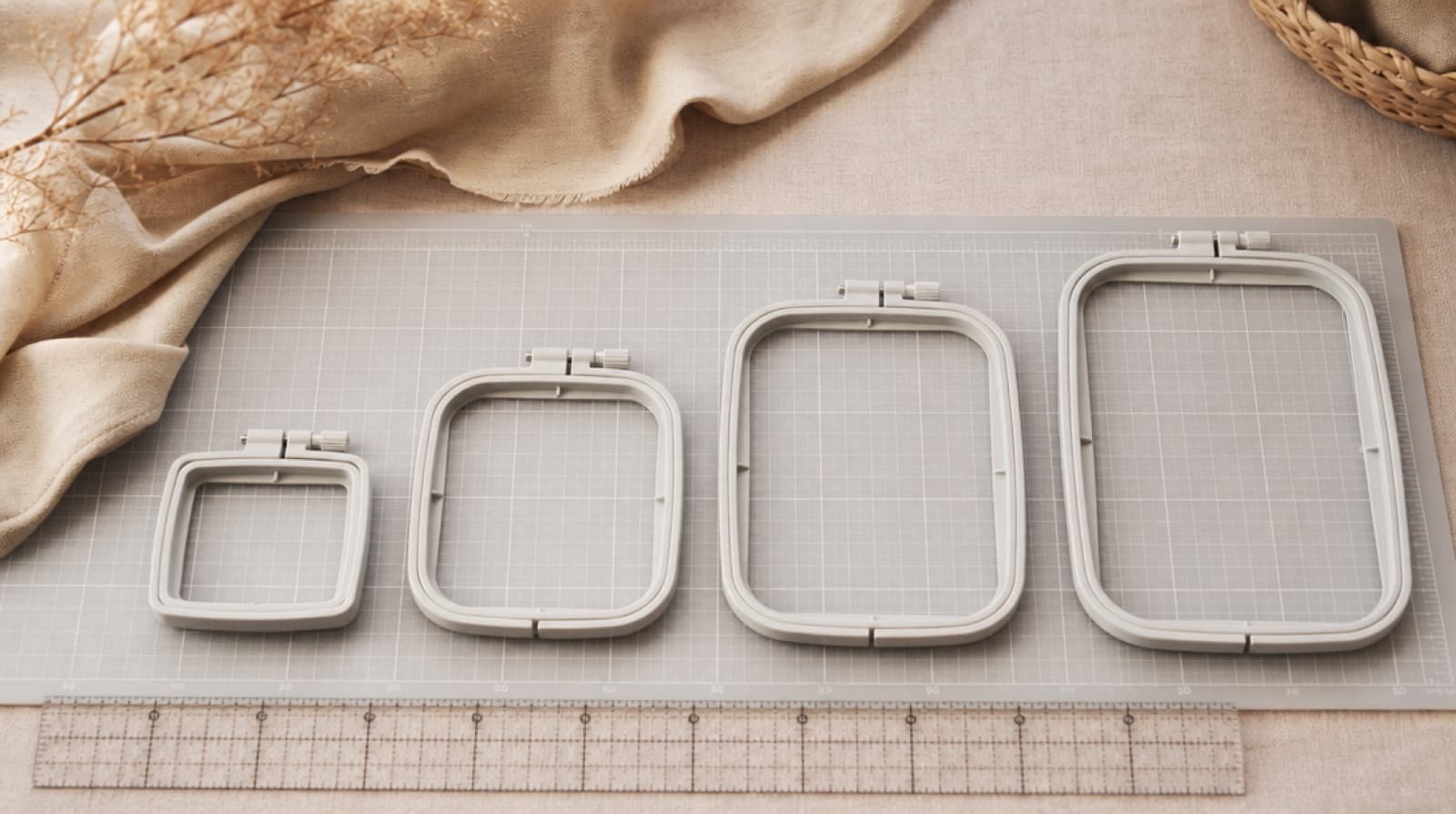
| Tells you the hoop | A design that doesn't fit your machine's hoop is useless. |
| Shows a stitch preview | You see problems before you sew, not after. |
| Clear cost per design | Compare per-design cost against how many designs you make a year. |
| Commercial use terms | If you sell what you make, check the license allows it. |
How to digitize a logo online with StitchFile
If your artwork is a logo, badge, mascot, icon or lettering, here's the whole process. It takes a few minutes, most of which is you checking the preview. For a deeper walk-through, see how to digitize a logo for embroidery.
- Get the cleanest artwork you have. SVG is ideal. A large, sharp PNG is next best. Remove mock-up backgrounds and shadows if you can. PNG/JPG files can be up to 10 MB, SVG up to 5 MB.
- Upload it at stitchfile.app/convert or in the app. PNG and JPG images are redrawn as clean vector art automatically, and a plain background is removed and left as fabric.
- Pick the size. Use a preset (left chest 90 mm, cap front 55 mm, patch 75 mm, sleeve 80 mm, 4×4 hoop 95 mm, full back 250 mm) or type any size from 20 to 300 mm on the longest side, in mm or inches. See embroidery hoop sizes if you're unsure what your machine takes.
- Pick the fabric: woven, T-shirt knit, polo piqué, denim, or towel & fleece. This sets stitch density, pull compensation and the stabilizer recommendation.
- Check the preview. In about 20 seconds you see your artwork next to a stitch simulation drawn from the real machine file, plus the stitch count, thread colors, trims, sew time and the smallest hoop it fits. Small lettering is flagged with a size that would work.
- Edit for free on the website if needed. Remove parts, use fewer colors, change colors to one of 64 Brother threads, switch existing lettering between satin and fill, or choose Density → Fuller if fabric might show through. Each edit makes a new free preview.
- Download. Every purchase includes PES, DST, JEF, EXP and VP3, plus a thread color key in sewing order with the stabilizer to use.
- Test-sew on scrap fabric with the same stabilizer before you sew the real item.
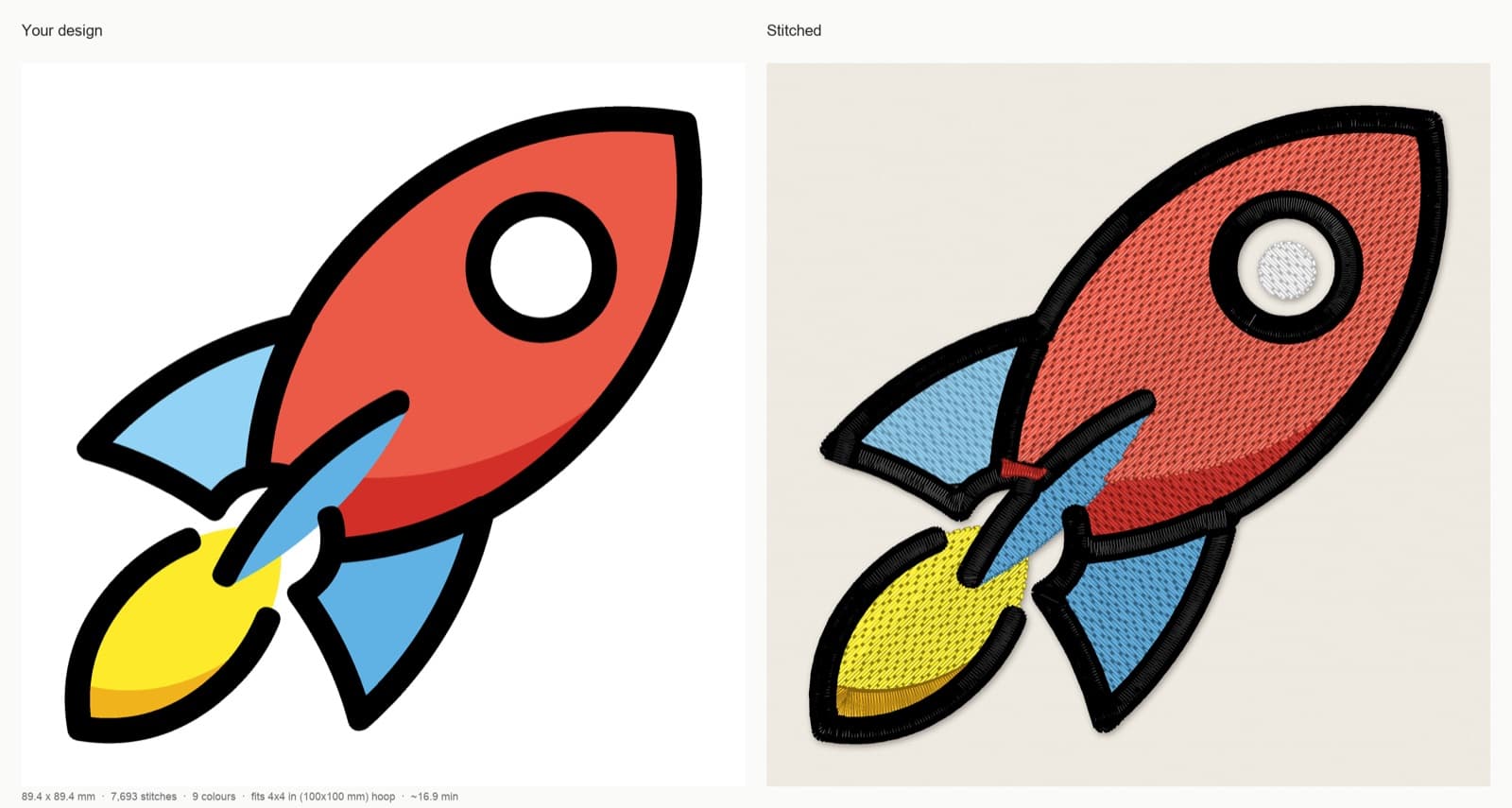
Artwork: OpenMoji rocket, CC BY-SA 4.0. StitchFile converted the artwork into the stitch preview shown here; these adaptations are shared under the same license.
Why StitchFile fits most home and small-shop jobs
- Nothing to install on a computer. Works in any browser on Mac or Windows, with an iPhone app available too.
- All five formats in every purchase. Switch machines later and you already have the file.
- Fabric and size are built in. The settings are tuned for the fabric and size you pick, and small lettering is flagged.
- The preview is free. You see the stitched result, the product mock-ups at real size and the hoop it needs before you pay.
- Automatic checks on every file before download: no gaps between colors, no stitch outside its shape, no stitch longer than 7 mm, and all five formats read back and compared.
- A sew-out guarantee. If a file sews badly, send a photo of the stitch-out and the team will re-run it free or refund that design (designs made from photos aren't covered).
What it costs
| Option | Price (USD) | Designs | Use |
|---|---|---|---|
| Preview and edits | Free | 3 new uploads a day without an account, 10 with a free account; editing and resizing require a free account and have separate daily limits | — |
| Single design | $4.99 | 1 | Personal |
| 10-pack | $29 | 10 credits that never expire ($2.90 each) | Personal |
| Pro | $19/month | 25 per month, unused designs roll over | Commercial |
| Shop | $49/month | 100 per month | Commercial |
If you sell what you make (Etsy, markets, a small business), you need Pro or Shop. Either way, you need to own the artwork or have permission to use it.
Common mistakes when choosing and using digitizing software
- Buying before checking your computer. Confirm the program runs on your operating system, or use a browser-based tool.
- Starting from a low-resolution image. A small screenshot gives soft, lumpy edges whatever software you use. Ask the logo owner for the original file.
- Lettering that's too small. Letters need to be at least about 5 mm tall on woven and denim, 6 mm on T-shirt knit and polo piqué, and 7 mm on towels and fleece. See embroidery lettering and fonts.
- Digitizing for one fabric and sewing on another. A file made for a woven shirt can pucker on a stretchy tee or sink into a towel. Re-run it for the fabric you're using.
- Resizing a finished stitch file a lot. Scaling a machine file far up or down changes stitch length and density. It's better to re-digitize at the new size.
- Ignoring the hoop. Check your machine's maximum embroidery area before you choose a size. A 5×7 hoop needs designs within 130×180 mm.
- Skipping the test stitch-out. Every file should be test-sewn on scrap fabric with the same stabilizer first. Most stitch-out problems come from hooping and stabilizer, not the file.
- Copying the zip to the USB stick. Machines can't open zip files. Unzip first and copy just the file for your format to the top folder of the stick.
FAQ
Is there free embroidery digitizing software?
Yes. Free open-source desktop digitizing programs exist, but you do the digitizing yourself, so expect a learning curve. StitchFile's uploads and stitch previews are free without an account, within daily limits. Editing, resizing and AI clean-up require a free account. You pay only to download the machine files.
What embroidery software works on a Mac?
Any browser-based tool works on a Mac, and some desktop programs have Mac versions while others need Windows in a virtual machine. StitchFile runs in any browser, so there's nothing to install on your Mac; an iPhone app is available too.
What is the best embroidery digitizing software for beginners?
The one that matches your projects. If you want to learn digitizing as a skill, desktop software gives the most control. If you mainly need logos, badges or lettering stitched, an online auto-digitizer with a free stitch preview and fabric settings gets you a file without the learning curve.
Can I turn a JPG or PNG into an embroidery file?
Yes. Upload it to an auto-digitizer such as StitchFile, which redraws PNG and JPG images as clean vector art before digitizing. Sharp, flat-color artwork gives the best results; photos are simplified into an illustration style.
Which file format do I need for my machine?
Brother and Baby Lock use PES, Janome uses JEF, Tajima and most commercial machines use DST, Melco and Bernina use EXP, and Husqvarna Viking and Pfaff use VP3. StitchFile includes all five in every purchase.
Is auto-digitizing good enough for real projects?
For clean logos, badges and lettering at a sensible size, yes, as long as the software accounts for fabric and size and you check the preview. Specialty techniques like 3D puff or photo-real shading are better suited to manual digitizing. Always test-sew first.
Try it on your own artwork
The fastest way to see whether your design will stitch is to look at it stitched. Upload your logo at stitchfile.app/convert, pick the size and fabric, and you'll get a free stitch preview in about 20 seconds, with all five machine formats ready if you decide to download.