Embroidery guide
How to Download Embroidery Designs on a Phone and Sew Them
How to download embroidery designs on iPhone or Android, why the files look blank, when to unzip, and how to get them to your machine or embroiderer.
Quick answer
- Embroidery files are not pictures. A phone can't show a
.pesor.dstfile, so the icon looks blank. That's normal; the file is fine.- Download only your machine's format (PES for Brother, for example). If you took the
.zip, unzip it first: machines can't open zip files.- iPhone: downloads go to the Files app, in Downloads. Android: the Files app, in Downloads, or your browser's download list.
- To your machine: copy the one file to the top folder of a small FAT32 USB stick through a USB-C or Lightning adapter. To an embroidery shop: use Email me the files and forward that email.
Here is how to download embroidery designs on a phone without the panic. A common email in our support inbox starts: "I bought the design on my phone and the file is blank." Others say Gmail won't attach it, the embroiderer got an empty email, only the color key downloaded, or "the link is not compatible with my device." In every one of those cases, the embroidery files were fine. The phone was doing what phones do with files they don't understand.
Below: what you're seeing, where the download went, and the shortest route to your machine or to an embroidery shop. For the formats themselves and the basics of USB transfer from a computer, see our guide to embroidery file formats.
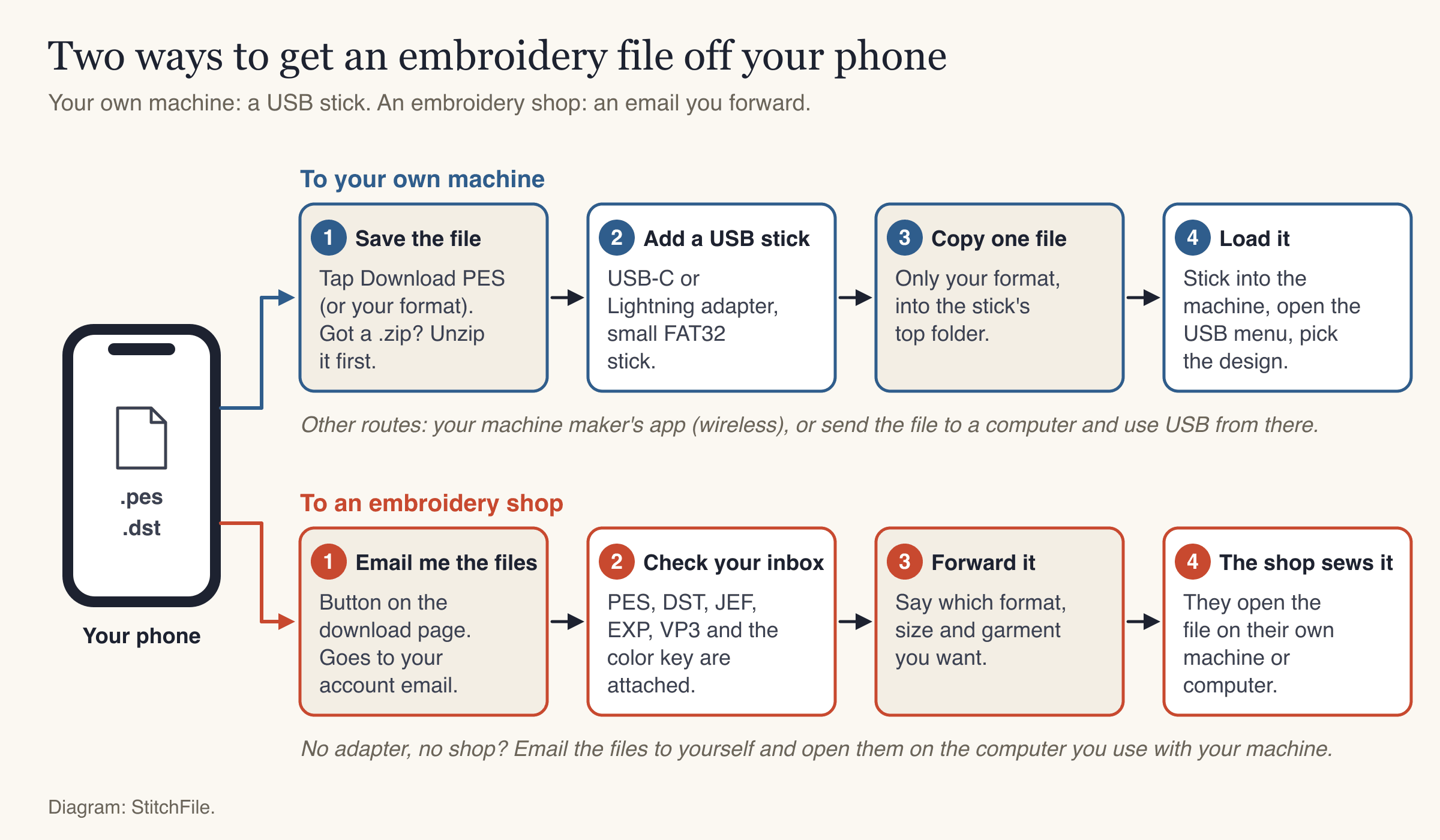
The two routes. Your own machine needs one file on a USB stick; an embroidery shop needs an email with the files attached.
Why embroidery files look blank on a phone
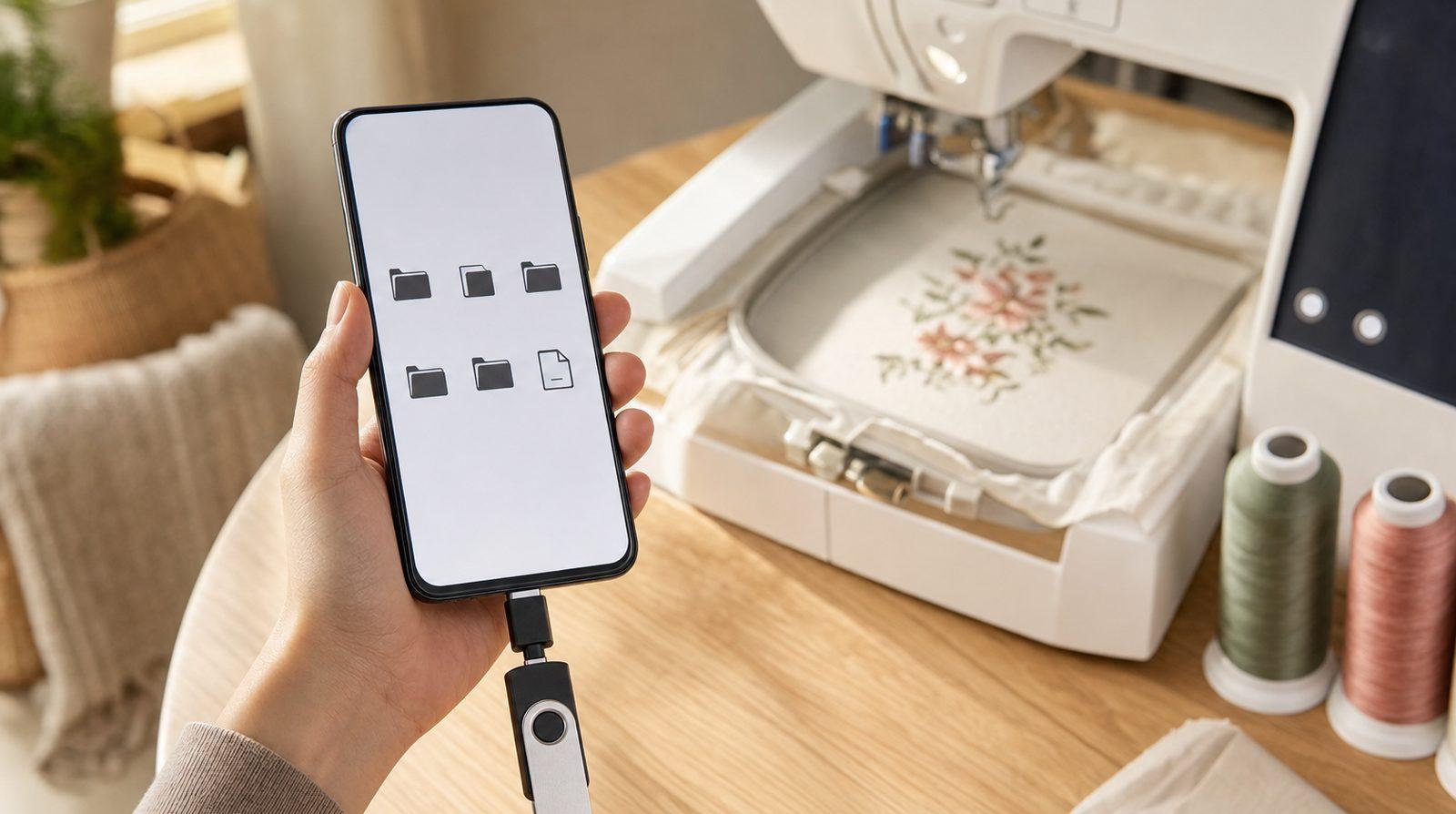
An image file (JPG, PNG) describes what a picture looks like. An embroidery file is a list of needle moves: stitch here, jump there, trim, change color. Your phone can't draw that, so the Files app shows a plain page icon and, if you tap it, "no preview" or nothing at all. A blank icon does not mean a broken or empty file.
How to open a PES file
You open a PES file on the machine, not on a phone. The machine shows the design on its screen when you load it from a USB stick, and so does your machine maker's app or desktop embroidery software.
To just see the design, you don't need a PES file viewer. Every StitchFile download includes the stitch preview (a normal PNG picture) and a thread color key you can read on any phone.
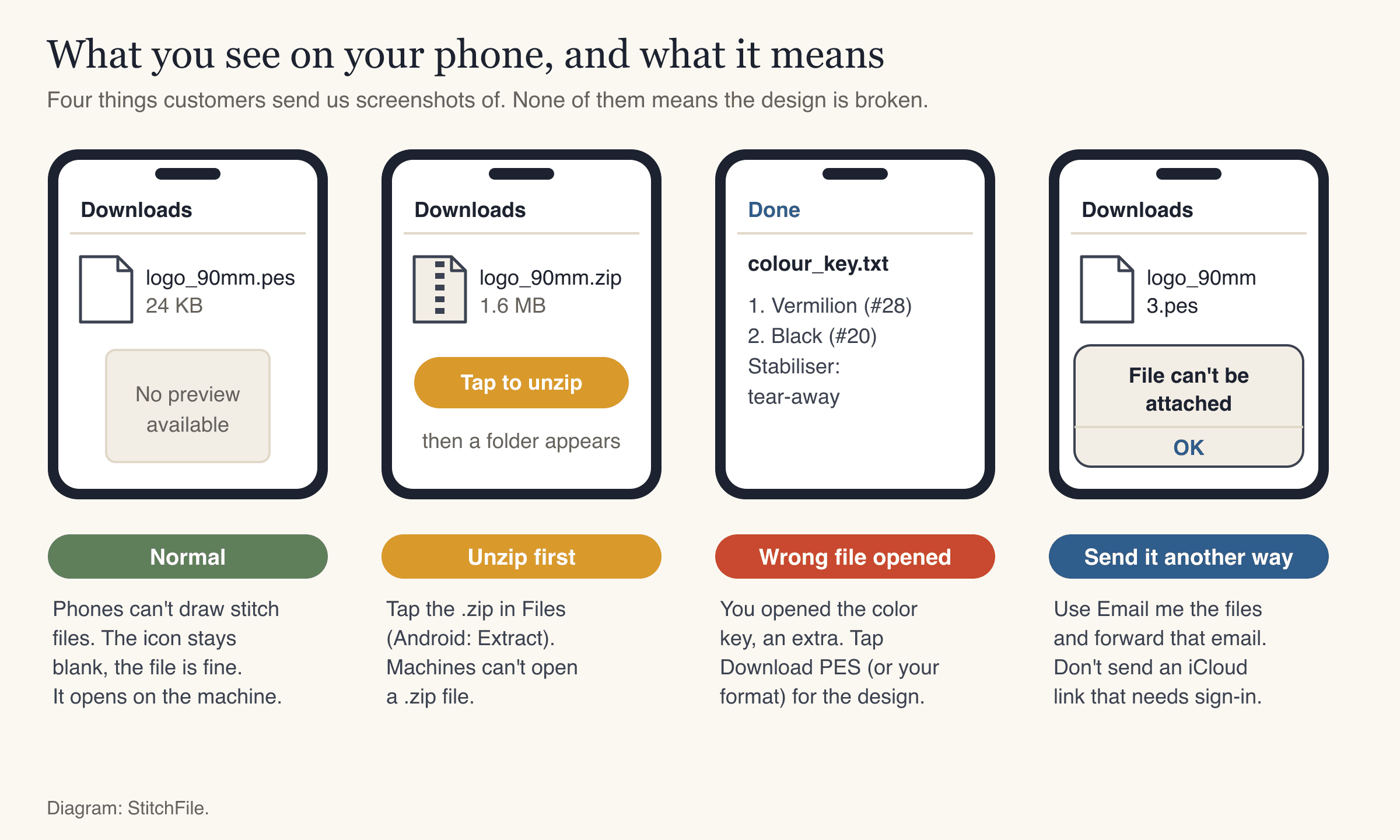
Four screens customers have described to us. None of them was a broken design.
What's in the download, and which file you need
On a StitchFile design you've bought, the download box has a Your machine's format picker and a big Download PES button (it changes to DST, JEF, EXP or VP3 when you pick another format). Under it, Also included: lists the other formats and All files (.zip).
| File | What it is | Opens on a phone? |
|---|---|---|
logo_90mm.pes, .dst, .jef, .exp, .vp3 | The machine files: one design, five formats | No, blank icon (normal) |
logo_90mm_colour_key.txt | Thread colors in sewing order, nearest Brother thread, stabilizer to use | Yes, as text |
logo_90mm_preview.png | Your artwork and the stitch preview side by side | Yes, as a picture |
logo_90mm_report.json | Every change made to the artwork | As text, not needed to sew |
logo_90mm.zip | All of the above in one compressed file | Only after unzipping |
On a phone, download only your machine's format. It's one small file you can copy straight to a stick. The zip is handy on a computer; on a phone it adds an unzip step, because machines can't read zips.
Not sure which format is yours? The short version:
| Machine | Format |
|---|---|
| Brother, Baby Lock | PES |
| Janome (and many Elna) | JEF |
| Husqvarna Viking, Pfaff | VP3 |
| Bernina, Melco | EXP |
| Tajima and most commercial multi-needle machines | DST |
Many machines read more than one; the file formats guide has the details, including why DST and EXP don't store thread colors.
A real download, file by file
Here is a simple design we ran through StitchFile at the left-chest size, 90 mm, on the Woven fabric setting. You upload the artwork, choose a size and fabric, check the free stitch preview, and the purchase includes all five machine formats plus the color key, the report and this preview image. The five machine files add up to under 60 KB, so file size isn't why an email fails.
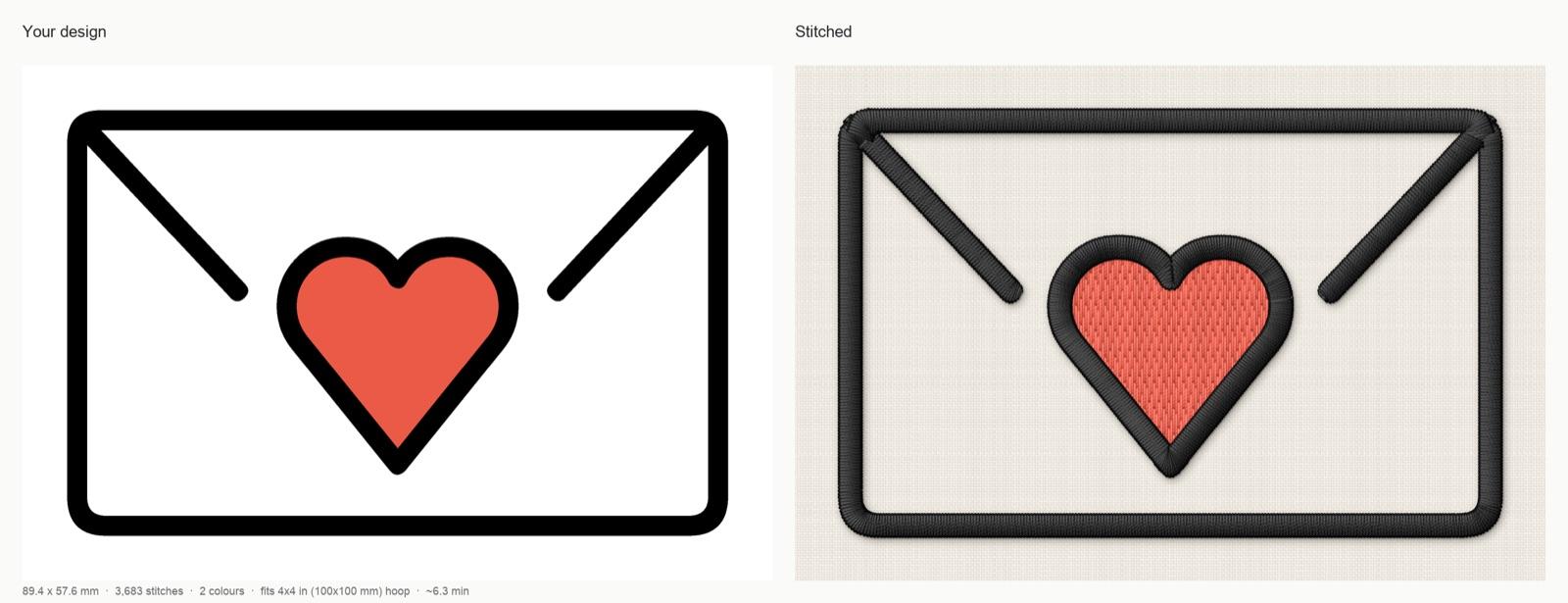
StitchFile stitch preview on the Woven setting: 89.4 × 57.6 mm, 3,683 stitches, 2 colors, 5 trims, fits a 4×4 in hoop, about 6.3 minutes at 700 stitches per minute. The white of the envelope stays bare fabric. This picture opens on a phone; the PES next to it only shows on the machine.
Artwork: OpenMoji love letter, CC BY-SA 4.0. StitchFile converted the artwork into the stitch preview shown here; these adaptations are shared under the same license.
How to download embroidery designs on an iPhone
- Open your design in Safari (signed in, so it's under My designs).
- Pick your machine's format and tap Download PES (or your format). If Safari asks "Do you want to download…?", tap Download.
- Open the Files app and go to Downloads. On iPhone the download box also reminds you: "On iPhone, downloads go to the Files app, in Downloads." If you use Chrome, look under On My iPhone, in the Chrome folder.
- If you downloaded the zip, tap it once in Files. A folder with the same name appears next to it, with the separate files inside.
- Watch for duplicates. Download the same file several times and the phone adds a number to each new copy's name. Keep one and rename it to something short.
How to download embroidery designs on Android
- Open your design in Chrome or your usual browser and sign in.
- Pick your format and tap Download PES (or your format).
- Find it: open the Files app (on some phones it's called My Files) and go to Downloads. Or open the browser's menu and choose Downloads.
- If you downloaded the zip, tap it and choose Extract. Copy the file from the extracted folder, not the zip.
- Expect a plain icon. Tapping it won't show the design; that's normal for embroidery files.
How to put embroidery designs on USB from a phone
Most phones can write to an ordinary USB stick through a small adapter, the quickest way to transfer embroidery designs to a machine without a computer.
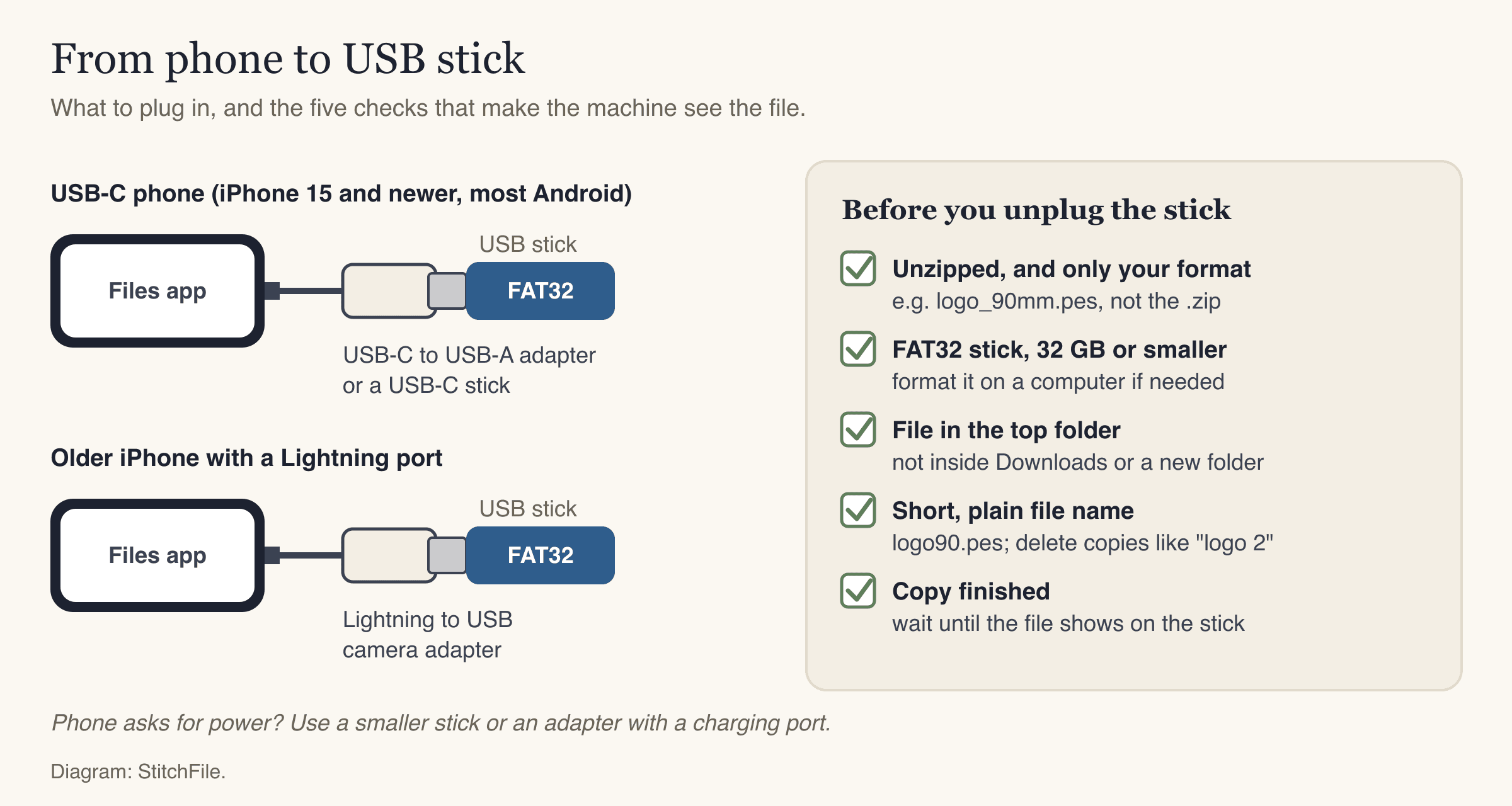
What to plug in, and the checks that make the machine find the file.
- Get the right adapter. A phone with a USB-C port (iPhone 15 and newer, most Android phones) takes a USB-C to USB-A adapter, or you can use a stick with a USB-C plug. An older iPhone with a Lightning port needs a Lightning to USB camera adapter.
- Use a small, FAT32-formatted stick. Many embroidery machines only read FAT32 and work best with sticks of 32 GB or less. Format it on a computer if needed (this erases it).
- Plug in the stick. On iPhone it appears in the Files app under Locations. On Android it shows in the Files app as a USB drive.
- Copy the one file. iPhone: long-press the file, tap Copy, open the stick, long-press an empty spot and tap Paste. Android: long-press the file, then Copy to and choose the USB drive.
- Put it in the stick's top folder. Not inside a folder called Downloads or a new folder. Some machines only look at the top level.
- Keep the name short, for example
logo90.pes. Some older machines cut off or skip long names. - Wait until the file shows on the stick, then unplug it, put it in the machine, open the USB menu and pick the design.
If the phone says the accessory needs too much power, try a smaller stick or an adapter with a charging port. Before the real garment, check the design fits your hoop (see our hoop sizes guide) and test-sew on scrap fabric.
Other ways to transfer embroidery designs to your machine
- Your machine maker's app. Some newer machines receive designs wirelessly through the maker's own app. Download your machine's format, then use the phone's Share button and choose that app.
- A computer. Email the files to yourself (the Email me the files button does exactly that) or AirDrop them to a Mac, then copy to USB as usual. Bought designs also stay in My designs for 12 months, so you can sign in on that computer and download them again.
In the StitchFile iPhone and Android apps
On a design you've bought, tap Share (for example, Share PES). The phone's share sheet opens: choose Save to Files, AirDrop it to a Mac, email it to yourself, or open it in your machine maker's app. Then copy it to a stick as above.
How to send embroidery files to an embroidery shop from your phone
This is where most phone trouble happens. One customer's Gmail app said "File can't be attached" and her iCloud share link didn't open for the embroiderer; another's embroiderer got an empty email every time. The files were fine in both cases; the attachments never made it into the message. The reliable way is an email that already has the files attached, which you forward.
- Open your design on the website and tap Email me the files.
- Check your inbox. The email goes to the address on your StitchFile account and has PES, DST, JEF, EXP and VP3 attached, plus the thread color key, named like
logo_90mm.dst. The page confirms where it was sent. - Forward that email to your embroiderer. Forwarding keeps the attachments, so you never have to attach an embroidery file from your phone.
- Add a short note: the format they asked for, the size (it's in the file name, such as 90mm), the garment and its color, and where the design goes.
Attaching files yourself? Attach the actual file from the Files app, not a screenshot or a cloud link that asks the shop to sign in.
Which format to send a shop
Ask them. Most commercial shops run multi-needle machines and want a DST file, the shared format of the trade (see our single vs multi-needle machines guide). A shop sewing on a home Brother may prefer PES. Forwarding the whole email covers both: every format is attached.
Always send the color key with a DST. DST stores stitches and color stops, not thread colors, so the shop's machine shows its own default colors. The key lists each color in sewing order with the nearest Brother thread; shops using another brand match from it with a thread conversion chart.
Troubleshooting: what you see and how to fix it
| What you see | What it means | Fix |
|---|---|---|
| The file icon is blank on iPhone | Phones can't draw embroidery files | Nothing is wrong. Copy it to USB or send it on |
| "Only the color key downloaded" | The key and preview opened; the PES looked like nothing | The PES is there. Use Download PES (or your format) and load it on the machine |
| "The link is not compatible with my device" | The phone can't use a DST file | The DST is for the machine. Email it to yourself and forward it, or copy it to USB |
| Gmail says "File can't be attached" | The phone's mail app won't take the file | Use Email me the files and forward that email |
| The embroiderer gets an empty email | The attachment didn't go through | Forward the Email me the files email instead |
| The machine shows no designs on the stick | File still zipped, inside a folder, or stick not FAT32 | Unzip, copy one file to the top folder of a FAT32 stick |
| The machine shows other designs but not yours | Wrong format, or a long or odd file name | Use your machine's format; rename to something short like logo90.pes |
| File name ends in " 2" or " 3" | Downloaded more than once | Keep one copy and rename it |
| Can't find the download at all | It went to Downloads, or the browser's own folder | iPhone: Files, then Downloads (Chrome: On My iPhone). Android: Files, then Downloads |
| "Design too large" on the machine | The design is bigger than your hoop | Make a smaller size; re-sizes are free for 7 days after you buy |
If the file loads but sews badly, that's a different problem: our machine embroidery troubleshooting guide covers it, and you can email a photo of the stitch-out to support@stitchfile.app so we can look at the file.
Common mistakes
- Deciding the file is broken because the phone can't show it. Load it on the machine first.
- Copying the zip to the USB stick. Unzip it, or download just your format.
- Attaching embroidery files from a phone. Forward an email that already has them attached.
- Sending a DST without the color key. The shop then guesses your thread colors.
- Using a large stick in a computer-only format (exFAT or NTFS). A small FAT32 stick avoids most "no designs found" messages.
FAQ
How do I open a PES file on my phone?
You can't open a PES file as a picture on a phone, and you don't need to. It's a set of stitch instructions that your Brother or Baby Lock machine reads from a USB stick, or that your machine maker's app opens. To see the design, open the preview image that comes with the files.
Is there a PES file viewer for iPhone?
You don't need one to use the file. The stitch preview image in the StitchFile download shows the design and how it will look stitched, and it opens on any phone. The PES itself only needs to open on the machine.
Why did my embroiderer get an empty email?
The attachment didn't make it into the message, which happens when embroidery files are attached or shared from a phone. Tap Email me the files on your design page; the email arrives with all five formats and the color key attached, and you forward it as it is.
Can my embroidery machine read a zip file?
No. Machines can't open zip files. Unzip it first (on iPhone, tap the zip in the Files app; on Android, choose Extract) and copy only your machine's format to the stick, or skip the zip and download your format directly.
Which file should I send to an embroidery shop?
Ask the shop, but most commercial shops use a DST file. Send the thread color key with it, because DST files don't store colors. Forwarding the Email me the files email sends every format and the key at once.
Can I put embroidery designs on a USB stick without a computer?
Yes. Plug a small FAT32 stick into your phone with a USB-C or Lightning adapter, then copy the unzipped file into the stick's top folder from the Files app. Wait until the copy shows on the stick before you unplug it.
Get the file, then let the machine show it
A phone is a fine place to buy and download embroidery designs; it just can't show them. Download your format, copy one file to the top of a small FAT32 stick, or forward the files email to your embroiderer.
If you're starting from your own logo or artwork, StitchFile turns it into PES, DST, JEF, EXP and VP3 in about 20 seconds, with a free stitch preview you can check on your phone before you buy, and an Email me the files button for when the design needs to travel.